

Why Is My Phone Running So Slow? 5 Fast Fixes for Android & iPhone
Why is my phone running so slow? Discover proven fixes for Android & iPhone lag—from Developer Options and iOS Reduce Motion to RAM Plus and WhatsApp storage.

A sluggish smartphone rarely means the processor is failing. Instead, mobile operating systems slow down when internal storage controllers run out of cache headroom, background applications saturate physical RAM, or system software throttles performance to protect degrading battery cells.
Whether you are using an Android device running One UI, HyperOS, or stock Android, or an Apple iPhone on iOS, this guide walks through the exact causes of smartphone lag and how to fix them immediately.
Phone Sluggishness Diagnostic Table
| Symptom | Primary Cause | Platform | Fastest Solution |
|---|---|---|---|
| App drawer & screen transition lag | Default OS UI transition animations | Android & iPhone | Set 0.5x in Developer Options (Android) / Reduce Motion (iOS) |
| Lag despite 30GB+ free storage | Virtual RAM / Disk swap bottlenecks | Samsung, Xiaomi, Tecno | Disable RAM Plus / Memory Extension |
| Freezes right after OS update | Background ART compilation / Spotlight indexing | Android & iPhone | Leave on charger overnight; wipe cache partition (Android) |
| Phone gets hot, drops frame rate | Ambient thermal throttling (>32°C) | All Smartphones | Remove thick case; avoid charging in direct sun |
| Websites crawl and hang on loading | Bloated browser cache & slow carrier DNS | Chrome & Safari | Clear browser cache & configure Cloudflare Private DNS |
1. The 10-Second Animation Fix (Android & iPhone)
Default system animations make transitions look fluid, but they introduce artificial delays before you can interact with the screen. Cutting these delays makes navigation feel instant.
On Android (0.5x Scale):
- 1. Open Settings > About Phone.
- 2. Tap Build Number 7 times until you unlock Developer Options.
- 3. Go to Settings > System (or Additional Settings) > Developer Options.
- 4. Scroll to Drawing and change Window animation scale, Transition animation scale, and Animator duration scale from 1x to 0.5x.
On iPhone (Reduce Motion):
- 1. Go to Settings > Accessibility > Motion.
- 2. Toggle Reduce Motion to On.
- 3. Turn on Prefer Cross-Fade Transitions.
2. Why Your Phone Lags Even with Good Storage
If your phone lags with 30GB+ of free space, the issue is memory management, not storage capacity:
- Turn Off Virtual RAM (Android): Features like Samsung RAM Plus, Xiaomi Memory Extension, and Tecno MemFusion use slow internal storage to emulate RAM. Because flash storage is far slower than physical RAM, swapping app memory to disk creates micro-stutters.
Fix: Go to Settings > Battery and Device Care > Memory > RAM Plus and switch it Off.
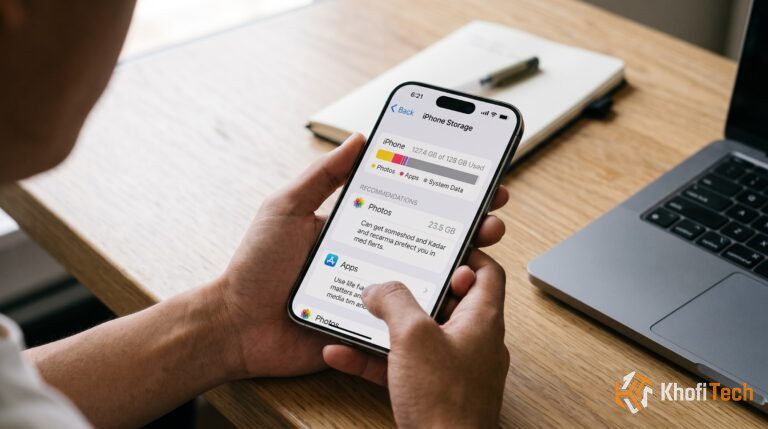
- Clear “System Data” Bloat (iPhone): Under Settings > General > iPhone Storage, check the System Data bar at the bottom. If it exceeds 20GB, iOS has failed to dump old logs and streaming cache. Back up your phone and restart it, or connect it to a computer for 10 minutes to trigger automated system cleanup.
Hardware vs. Network Lag: If your home screen is smooth but web pages, videos, and social feeds crawl, your problem is likely network latency. Test your connection using our free Wi-Fi Speed Calculator to verify whether your mobile carrier is throttling bandwidth.
3. Slow After a Software Update?
If your phone stutters after an OS upgrade, the slowdown is temporary:
- Android ART Compilation: Android must recompile bytecode for every app during idle periods.
- iOS Spotlight Indexing: iPhones rebuild their local search database and scan Photos for faces and duplicates in the background.
The Fix: Connect your phone to its charger on Wi-Fi and leave it idle overnight. On Android, if lag continues past 48 hours, power off the phone, hold Power + Volume Up to enter Recovery Mode, and select Wipe Cache Partition (this clears temporary system files without touching personal data).
4. Slow Only When Browsing?
When apps run fine but Chrome or Safari crawls, your browser needs maintenance:
- Clear Stale Cache: In Chrome, go to Settings > Privacy and Security > Delete Browsing Data and clear cached files. In Safari, go to Settings > Safari > Clear History and Website Data.
- Bypass Slow Carrier DNS: If pages hang on “Resolving host…”, switch to a faster resolver. On Android, go to Settings > Connections > More Connection Settings > Private DNS and enter one.one.one.one. On iPhone, configure your Wi-Fi network DNS to 1.1.1.1.
5. Daily Habits to Keep Your Device Fast
1. Clear WhatsApp Media: Auto-downloaded group videos and voice notes silently fill your drive. In WhatsApp, go to Settings > Storage and Data > Manage Storage and clear large forwarded files.
2. Prevent Overheating: When a phone’s internal temperature passes 35°C, the OS cuts processor speeds by up to 50% to prevent hardware damage. Take off thick cases during gaming, and never charge your device under a pillow or in direct sun.
3. Restrict Background Refresh: Turn off background activity for shopping and social apps under Settings > General > Background App Refresh (iPhone) or Settings > Apps > Battery > Restricted (Android).
4. Check Battery Degradation: If battery maximum capacity drops below 80% (Settings > Battery), both iOS and Android throttle peak processor performance to prevent sudden shutdowns. Replacing the battery restores full speed.
5. Delete “Cleaner” Apps: Third-party RAM boosters and battery savers run continuous ad processes in the background. Android and iOS manage memory automatically—delete these cleaners immediately.
Frequently Asked Questions
Quick answers to common questions
A slow phone is typically caused by storage nearing capacity (over 85% full), thermal throttling in hot environments, background bloatware consuming RAM, or degraded battery health. You can fix it quickly by clearing WhatsApp media, setting animation scales to 0.5x in Developer Options (Android) or enabling Reduce Motion (iOS), removing third-party "cleaner" apps, and restarting your device once a week.
To improve phone speed without spending money, lower animation scales to 0.5x in Developer Options, disable Samsung RAM Plus or virtual memory extensions, restrict background app refresh for social apps, and clear browser caches in Chrome or Safari.
While settings cannot change the physical speed of your silicon, setting Window animation scale, Transition animation scale, and Animator duration scale to 0.5x (or Off) in Developer Options eliminates UI transition delays, making screen changes and app opening feel instantaneous.
If you have plenty of free space, lag is usually caused by virtual RAM features like Samsung RAM Plus (which relies on slower flash storage swap), low physical RAM (3GB–4GB) overwhelmed by background apps, thermal throttling from ambient heat, or degraded random read/write speeds on older eMMC storage chips.
After a system update, Android needs 24 to 48 hours to recompile app bytecode in the background via ART optimization. Leaving the phone on Wi-Fi and connected to power overnight allows this to finish. If lag persists, clearing the system cache partition via Recovery Mode fixes lingering conflicts.

Thread (0)