

Liquid Detected in iPhone Connector: How to Fix It
Seeing the liquid detected in iPhone connector warning? Learn how to safely dry your port, avoid the rice myth, and fix charging errors fast.

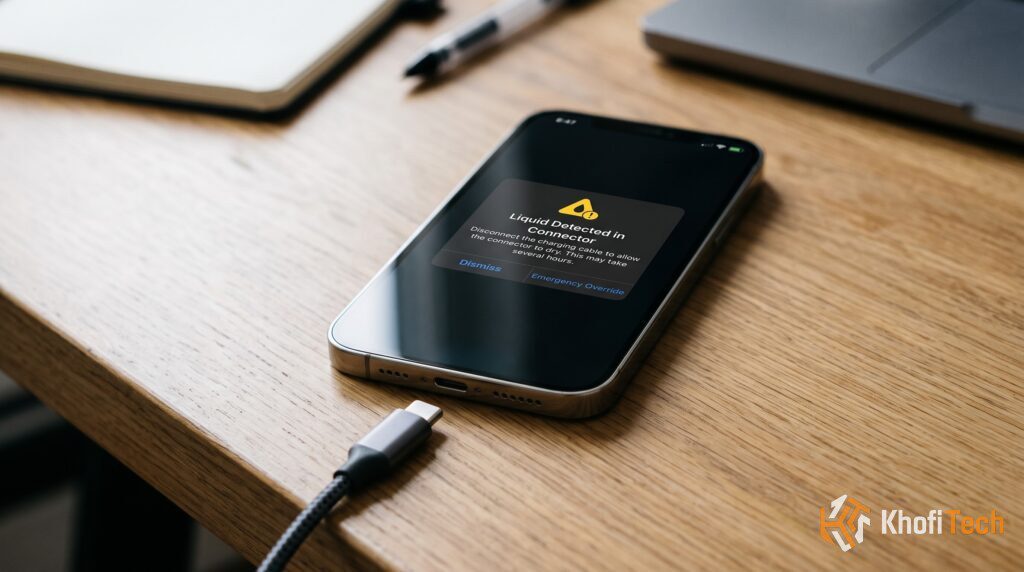
Seeing the liquid detected in iPhone connector alert pop up when you plug in your charging cable can be alarming. The warning usually states: “Charging Not Available — Liquid has been detected in the Lightning / USB-C connector. Disconnect to allow the connector to dry.”
Whether your phone got caught in a sudden downpour, was exposed to heavy sweat during a gym workout or a crowded commute, or simply encountered condensation moving from an air-conditioned room into humid coastal air, iOS halts electrical flow to prevent disaster.
Here is how to safely dry your phone, clear the alert, and avoid common mistakes that cause permanent hardware damage.
Why iOS Shows This Warning
Modern iPhones feature moisture sensors embedded directly within the charging port. When liquid bridges the gap between the metallic charging pins, the phone detects an abnormal electrical conductivity loop.
If high-voltage current flows while liquid is present, it triggers galvanic corrosion—essentially eating away the delicate gold pins inside your Lightning or USB-C port within minutes. The pop-up warning is a protective failsafe to stop that from happening.
3 Things You Must NEVER Do
When panic sets in, many people turn to old internet advice that actually makes port damage worse:
1. Do NOT Put the iPhone in a Bag of Rice: Raw uncooked rice contains tiny starch grains and silica dust. When these mix with the moisture trapped inside your port, they create a gummy paste that hardens around the pins, frequently requiring a full port replacement.
2. Do NOT Use Hair Dryers, Heat Guns, or Compressed Air: High-pressure air drives moisture deeper into the microphone meshes and speaker grilles. Extreme heat will melt the internal water-resistant adhesives and degrade your battery chemistry.
3. Do NOT Poke Objects into the Port: Never shove cotton buds, rolled-up paper towels, toothpicks, or safety pins into the connector. You risk bending the spring-loaded pins or leaving cotton fibers lodged inside.
The Safe 4-Step Method to Dry Your iPhone Connector
If your phone displays the liquid detection warning, follow Apple’s recommended physical drying procedure:
Step 1: Unplug the Cable Immediately
Disconnect the charging cable or accessory from both the phone and the wall adapter. Do not plug it back in until the port is completely dry.
Step 2: Tap Out Excess Droplets
Hold your iPhone upright with the charging port facing directly toward the floor. Gently tap the phone against the palm of your hand several times to shake free any standing liquid trapped inside the cavity.
Step 3: Place in an Area with Continuous Airflow
Lay the iPhone flat on a clean cloth or wooden desk in a dry room with steady air circulation.
Placing the phone a few feet in front of a standard electric fan blowing cool air directly toward the port speeds up evaporation significantly.
Avoid damp, closed environments like closed drawers or humid bathrooms.
Step 4: Wait at Least 30 Minutes
Leave the phone untouched for at least 30 minutes to two hours. If the phone was completely submerged or heavily soaked, it can take up to 24 hours for the microscopic moisture film on the pins to evaporate completely.
What to Do If You Urgently Need Battery Power
If your battery is at 1% and you cannot wait hours for the port to air-dry:
Use a MagSafe or Qi Wireless Charger: Wireless charging does not send electricity through the physical charging pins. Wipe down the back glass of your iPhone thoroughly with a microfiber towel to ensure it is dry, then set it on a wireless charging pad or MagSafe puck.
Understanding “Emergency Override”: The alert gives you an option to tap “Emergency Override” to force charging. Only use this in a genuine life-or-death emergency. Forcing power through wet pins can short out the charging IC (Tristar/Hydra chip) on the logic board, resulting in a phone that never charges again.
What If the Port Is Completely Dry but the Alert Won’t Disappear?
If you know the phone has not been near water, but the liquid detected in iPhone connector warning persists, you are likely dealing with dirty pins or a faulty accessory:
| Potential Cause | Why It Triggers the Alert | How to Fix It |
|---|---|---|
| Pocket Lint & Debris | Trapped dust absorbs ambient humidity and bridges the pins. | Inspect with a flashlight; gently remove lint using an anti-static brush. |
| Damaged Cable Tip | Corroded or cheap non-MFi cables cause irregular resistance. | Try an original Apple or certified MFi cable to isolate the fault. |
| iOS Sensor Glitch | Temporary software cache holding onto the alert state. | Perform a force restart (Volume Up, Volume Down, hold Power button). |
| Corroded Port Pins | Past water exposure left behind oxidation on copper contact pads. | Requires cleaning with 99% isopropyl alcohol by a technician. |
Final Thoughts
The liquid detection warning is a protective shield, not a death sentence for your device. Resisting the urge to use hair dryers or bags of rice and allowing the port to air-dry naturally will have your iPhone back to normal charging without costly technician bills.

Thread (0)