

How to Stop Apps From Eating Mobile Data in Background
Are your data bundles vanishing overnight? Learn how to stop apps from eating mobile data in the background on iPhone and Android with 5 simple steps.

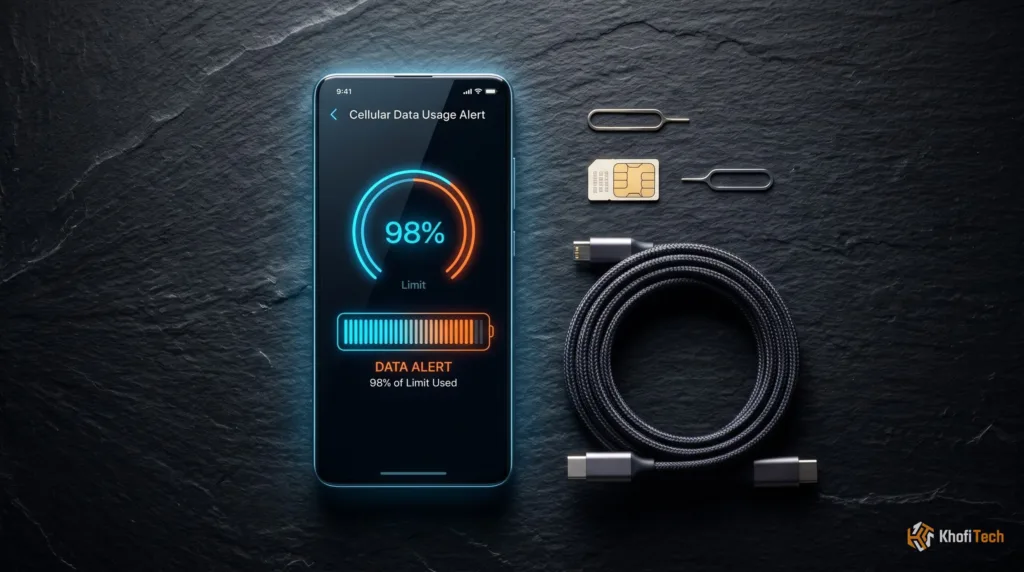
Few things are more frustrating than purchasing a fresh 5 GB or 10 GB mobile data bundle, putting your phone down, and waking up to an alert that your bundle is 80% depleted.
You didn’t stream movies or download heavy games—so where did the gigabytes go? Modern smartphones are designed to continuously fetch updates, sync cloud photos, and preload video feeds even when your screen is locked.
Here is a practical, step-by-step guide to stop apps from eating mobile data in the background on both iPhone and Android.
1. Disable Background App Refresh (iPhone & Android)
Background refresh allows apps to ping servers and download content while you aren’t actively using them. Restricting it saves both mobile data and battery life.
On iPhone:
1. Open Settings > General > Background App Refresh.
2. Tap the top toggle and set it to Wi-Fi (or turn it Off entirely).
3. If you prefer to leave it on, scroll down and manually toggle off heavy culprits like Instagram, TikTok, Facebook, and YouTube.
On Android:
1. Open Settings > Network & internet (or Connections) > Data usage.
2. Tap App data usage to see which apps consume the most data.
3. Tap each high-consuming app and toggle off Allow background data usage.
2. Turn On System-Wide Data Saver Modes
Both iOS and Android feature built-in master switches that throttle background data across the entire operating system with a single tap.
| Platform | Setting Path | What It Does |
|---|---|---|
| iPhone |
Settings → Mobile Service → Mobile Data Options → Data Mode → Low Data Mode |
Pauses automatic updates, halts background tasks, and lowers streaming bitrates. |
| Android |
Settings → Network & internet → Data Saver → Use Data Saver |
Blocks background data transfers and restricts syncing to Wi-Fi. |
3. Stop WhatsApp & Telegram Auto-Downloads
If you participate in active work, church, or community group chats, members send hundreds of high-definition photos, voice notes, and comedy clips daily. If auto-download is turned on, your phone downloads every single file in the background over your cellular plan.
WhatsApp:
1. Go to Settings > Storage and Data.
2. Under Media Auto-Download, tap When using mobile data.
3. Uncheck Photos, Audio, Videos, and Documents.
Telegram:
1. Go to Settings > Data and Storage.
2. Under Automatic media download, turn off When using cellular.
4. Restrict Cloud Backups Strictly to Wi-Fi
Cloud photo syncing services (Google Photos and iCloud Photos) automatically upload new photos and videos to the cloud. If you snap 4K clips or multiple high-resolution photos on cellular data, your bundle can vanish in minutes.
Google Photos: Tap your profile icon > Photos settings > Backup. Turn off Mobile data usage (set daily limit for backup to No data).
iCloud Photos: Open Settings > Photos > Mobile Data. Toggle off Mobile Data and turn off Unlimited Updates.
5. Enable In-App Data Savers on Social Media
Short-form video apps continuously preload the next 3 to 5 videos in your feed so they start playing instantly without buffering. Disabling this preloading drastically cuts cellular waste.
TikTok: Go to Profile > Settings and privacy > Cache & Cellular > Data Saver and switch it on.
Instagram: Go to Profile > Settings and activity > Cellular data use and turn on Use less mobile data.
YouTube: Open Settings > Data saving and toggle on Data saving mode.
Quick Data-Saving Audit
| Action | Estimated Monthly Savings | Setup Time |
|---|---|---|
| Disable WhatsApp Auto-Download | 3 GB – 8 GB | 30 seconds |
| Set Cloud Backups to Wi-Fi Only | 2 GB – 10 GB | 1 minute |
| Enable System Data Saver Mode | 2 GB – 5 GB | 20 seconds |
| Turn On Social Media Data Savers | 1 GB – 4 GB | 2 minutes |
Ask Khofi Tech
Related stories
Is Outlook Down? Live Status Check, Fixes & November 2026 Outage Explained
Can't load or send emails in Outlook? Check live Microsoft 365 status, read what caused the massive November 2026 global outage, and try 5 quick fixes.
SuperVOOC vs. USB-PD: Why Your Fast Charger Charges Other Phones Slowly
Ever wondered why your 80W or 100W SuperVOOC charger charges iPhones and Samsung Galaxy phones at just 10W? Here is the voltage, PPS, and handshake science explained.
How to Check if an iPhone is Refurbished, Replaced, or Fake (2026)
Buying a used or renewed iPhone? Learn how to decode model letters (M, F, N, P), inspect Apple’s Parts & Service History, spot counterfeit clones, and verify IMEI status
Thread (0)