

How to Clear System Data on iPhone: 5 Easy Ways
Learn how to clear System Data on iPhone fast. Free up 10GB+ of storage by removing hidden caches, WhatsApp bloat, and system logs.

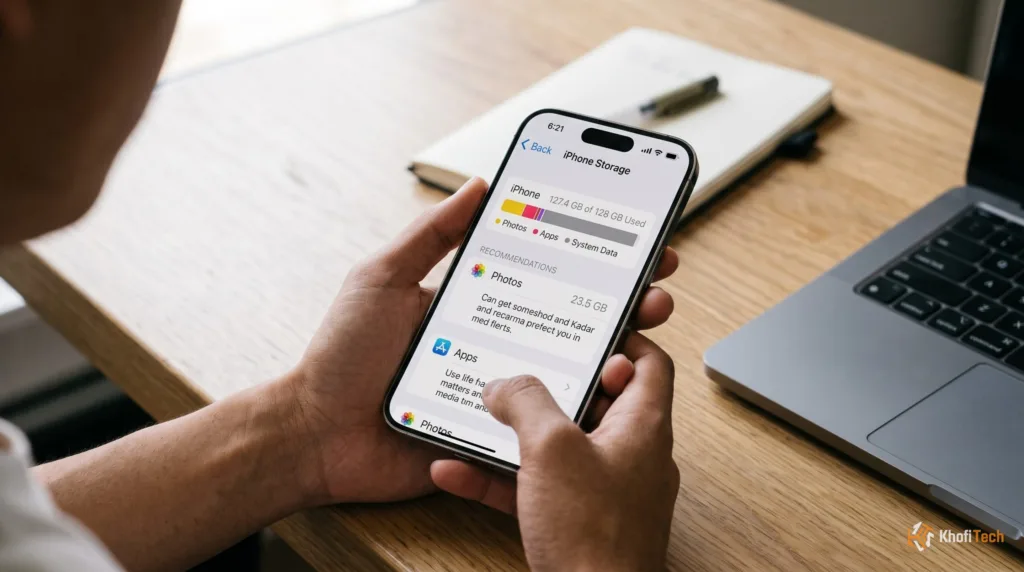
If your iPhone storage is full and a mysterious grey bar labeled “System Data” is eating 20 GB to 40 GB of your space, you don’t need to delete your personal photos.
On 64 GB and 128 GB iPhones, bloated cache files can quickly grind your phone to a halt. Here is how to clear System Data on iPhone and recover your storage in minutes.
1. Clear Safari Cache (1–3 GB Reclaimed)
Safari saves website data and images to speed up browsing, but this cache quietly balloons over time.
1. Open Settings > Safari.
2. Tap Clear History and Website Data.
3. Select All History and confirm Clear History.
2. Purge WhatsApp & Telegram Media (3–10 GB Reclaimed)
Active group chats flood your local storage with forwarded videos and voice notes that leak into system cache.
WhatsApp: Open Settings > Storage and Data > Manage Storage. Review the “Larger than 5 MB” section and delete heavy videos.
Telegram: Open Settings > Data and Storage > Storage Usage and tap Clear Telegram Cache.
3. Clear In-App Streaming Caches (2–5 GB Reclaimed)
Apps like TikTok, Audiomack, and Spotify store large temporary buffers to keep playback smooth on mobile data:
TikTok: Go to your Profile > Settings and Privacy > Cache & Cellular and tap Clear Cache.
Music Apps: Delete downloaded offline playlists in Spotify or Audiomack that you no longer listen to.
4. Force Restart Your iPhone (1–3 GB Reclaimed)
A forced reboot closes stalled background processes and forces iOS to delete temporary log dumps upon restart:
1. Press and quickly release Volume Up.
2. Press and quickly release Volume Down.
3. Press and hold the Side/Power button until the Apple logo appears, then release.
5. The Complete Reset: Encrypted Backup & Restore
If your System Data remains stuck above 20 GB, your log index is corrupt. An encrypted computer backup backs up your apps, passwords, and photos, but ignores system cache bloat:
| Step | Action | Result |
|---|---|---|
| 1. Back Up | Connect to a PC/Mac. Select “Encrypt Local Backup” and click Back Up Now. | Saves personal data while excluding temporary cache bloat. |
| 2. Erase | On iPhone: Settings > General > Transfer or Reset iPhone > Erase All Content and Settings. | Completely wipes the drive and clears system logs. |
| 3. Restore | Reconnect to your PC and click Restore Backup. | Restores your clean data, reclaiming 15 GB to 30 GB instantly. |
Ask Khofi Tech
Related stories

Is Outlook Down? Live Status Check, Fixes & November 2026 Outage Explained
Can't load or send emails in Outlook? Check live Microsoft 365 status, read what caused the massive November 2026 global outage, and try 5 quick fixes.
SuperVOOC vs. USB-PD: Why Your Fast Charger Charges Other Phones Slowly
Ever wondered why your 80W or 100W SuperVOOC charger charges iPhones and Samsung Galaxy phones at just 10W? Here is the voltage, PPS, and handshake science explained.

How to Check if an iPhone is Refurbished, Replaced, or Fake (2026)
Buying a used or renewed iPhone? Learn how to decode model letters (M, F, N, P), inspect Apple’s Parts & Service History, spot counterfeit clones, and verify IMEI status
Thread (0)