

Why Is My Phone Battery Draining So Fast? 8 Fixes To Try
Learn why your phone battery is draining so fast and try 8 practical fixes for Android and iPhone, from battery settings to background apps.

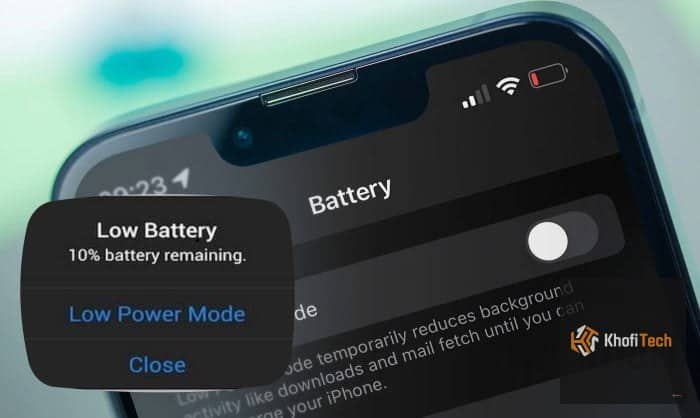
Have you noticed that your phone battery drops quickly even when you are not using it much? You may charge your phone in the morning only to find the battery almost empty before the day ends.
If your phone battery is draining so fast, several things could be responsible. Bright screen settings, background apps, weak network signals, location services, and an ageing battery can all affect how long your phone lasts.
The good news is that you can try several simple fixes before spending money on a new battery or phone.
Here are eight practical ways to reduce battery drain on Android phones and iPhones.
Why Is My Phone Battery Draining So Fast?
Your phone uses power for more than the activities you can see on the screen. Apps may refresh in the background, your phone may search for a stronger network signal, and system features may continue working when the screen is off.
Common causes include:
- High screen brightness
- Apps running or refreshing in the background
- Poor mobile network reception
- Location services running frequently
- Power-hungry games and video apps
- Software problems or recent updates
- An ageing or damaged battery
The exact cause depends on your phone, its settings, and how you use it. Try the following fixes to identify what is affecting your battery life.
1. Reduce Your Screen Brightness
Your screen can use a significant amount of battery, especially when brightness is high or you keep the display on for long periods.
What to do:
- Lower your screen brightness to a comfortable level.
- Turn on automatic or adaptive brightness if available.
- Reduce the screen timeout so the display switches off when you are not using it.
- If your phone has an always-on display, consider disabling it if you do not need it.
On an iPhone, open Control Centre to adjust brightness, or go to Settings > Display & Brightness.
On Android, swipe down from the top of the screen and adjust the brightness slider. The exact settings depend on your phone brand and Android version.
Why it helps: A dimmer screen and shorter screen-on time can reduce the power used by the display.
2. Find Apps That Are Using Too Much Battery
Some apps consume more power than others. Video streaming, gaming, navigation, social media, and apps that frequently sync data can use considerable battery.
An app may also drain power unexpectedly if it becomes stuck or continues working in the background.
On iPhone:
- Open Settings.
- Tap Battery.
- Review battery usage by app.
- Check which apps use the most power and whether their activity occurs on-screen or in the background.
On Android:
- Open Settings.
- Go to Battery or Battery Usage.
- Review the apps consuming the most power.
- Select an app to view available battery usage or background activity settings.
Menu names differ across Android devices.
If an app is using an unusually large amount of battery, update it, restrict unnecessary background activity, or uninstall it if you no longer need it. Avoid restricting apps that must run in the background for important functions, such as messaging notifications.
3. Turn On Battery Saver or Low Power Mode
If your battery is running low before the end of the day, your phone’s power-saving mode can help.
On an iPhone, open Settings > Battery and enable Low Power Mode. You can also enable it through Control Centre if the control is available.
On Android, open Settings > Battery and look for Battery Saver, Power Saving, or a similarly named option.
These modes may reduce background activity, automatic syncing, visual effects, or performance to save energy.
When should you use it?
Turn it on when you need your phone to last longer, particularly when you are travelling, attending classes, working away from a charger, or expecting a long day.
Keep in mind that some apps may update less frequently while power-saving mode is enabled.
4. Check Your Mobile Network Signal
Your phone may use more power when it struggles to maintain a mobile connection. This can happen in buildings with poor reception, rural areas, underground locations, or places with network congestion.
If your battery drains faster in certain locations, your network signal may be part of the problem.
What to do:
- Move to a location with better reception when possible.
- Use a reliable Wi-Fi connection when it is available.
- Avoid repeatedly switching network settings without a reason.
- If you are in an area with no mobile coverage and do not need calls or mobile data, consider Airplane Mode temporarily.
Remember that Airplane Mode disconnects cellular service, and may also affect Wi-Fi and Bluetooth depending on your settings.
If your phone consistently loses signal in places where other phones on the same network work normally, check your SIM card, carrier settings, or network provider.
5. Limit Unnecessary Background Activity
Some apps refresh their content even when you are not actively using them. Depending on the app and your settings, this can contribute to battery drain.
You do not need to close every app constantly. Instead, identify apps that use unnecessary background power.
On iPhone:
- Open Settings.
- Tap General.
- Select Background App Refresh.
- Disable it for apps that do not need to refresh in the background.
You can also review app-specific settings and notifications.
On Android:
- Open Settings.
- Go to Apps.
- Select the app you want to review.
- Look for Battery or background usage settings.
- Restrict background activity where appropriate.
The exact options vary by manufacturer. Restricting an app may delay notifications or background updates.
6. Review Location Services
GPS and location-related activity can consume battery, especially when several apps request your location frequently.
Maps and navigation apps may need continuous location access while in use. Other apps may not need it all the time.
On iPhone:
- Open Settings.
- Select Privacy & Security.
- Tap Location Services.
- Review which apps can access your location.
- Change unnecessary permissions to While Using the App or another suitable option.
On Android:
- Open Settings.
- Select Location.
- Review app location permissions.
- Allow location access only when needed for each app’s purpose.
Do not disable location access blindly. Navigation, device recovery, emergency features, and other useful services may depend on it.
7. Update Your Phone and Apps
Software bugs can sometimes cause unusual battery drain. An app may also consume more power than expected because of a bug or compatibility issue.
If the battery problem started after installing an app or updating your phone, check for further updates and review battery usage.
What to do:
- Install available stable system updates.
- Update apps through the official app store.
- Restart your phone if it has been running unusually.
- Check battery usage again after updating.
Keep in mind that a phone may use additional power for a short period after a major software update while it completes background tasks. If the drain remains unusually high after several days, investigate further.
Avoid installing unknown “battery booster” apps that promise to fix every battery problem. Your phone’s built-in battery settings are usually the best place to start.
8. Check Your Battery Health
If you have tried the other fixes and your phone still loses power unusually quickly, the battery itself may be ageing.
Rechargeable batteries gradually lose capacity over time. This means a phone that once lasted a full day may need charging more often as the battery ages.
On iPhone:
- Open Settings.
- Tap Battery.
- Select Battery Health or Battery Health & Charging, depending on your iOS version.
- Review the maximum capacity and any battery service messages.
A lower maximum capacity means the battery holds less charge than it did when new. It does not automatically mean the battery must be replaced immediately.
On Android:
Battery health features vary by manufacturer and model. Check Settings > Battery for battery health or diagnostics, if available. Some phones show battery condition while others provide only usage information.
If the phone has a noticeably reduced runtime, unexpected shutdowns, or a battery service warning, contact the manufacturer or a reputable repair provider.
Important: If your phone’s battery is swollen, the device is separating at the edges, or it becomes dangerously hot, stop using and charging it and seek professional assistance. Do not attempt to puncture or remove a swollen battery yourself.
Bonus Tip: Avoid Excessive Heat
Heat can affect battery performance and contribute to long-term battery ageing.
Try to keep your phone away from direct sunlight, hot vehicles, and other heat sources. Avoid demanding activities such as intensive gaming while the phone is already very hot.
If your phone becomes hot while charging, disconnect it if necessary, close demanding apps, and let it cool in a safe place. Use a compatible charger and cable.
A warm phone is not always a sign of damage, but repeated excessive heat deserves attention.
How Do You Know What Is Draining Your Battery?
Before changing several settings at once, check your phone’s battery usage screen. It can help you distinguish between heavy screen use, an app consuming unusual power, and general battery ageing.
Try one or two relevant changes and monitor your battery over the next day. This makes it easier to identify which fix is helping.

Thread (0)