

LinkedIn Data Download Change (Dec 20, 2026): Back Up Your Connections Now
Starting December 20, 2026, LinkedIn's data download removes your connections' email addresses, companies, and job titles.

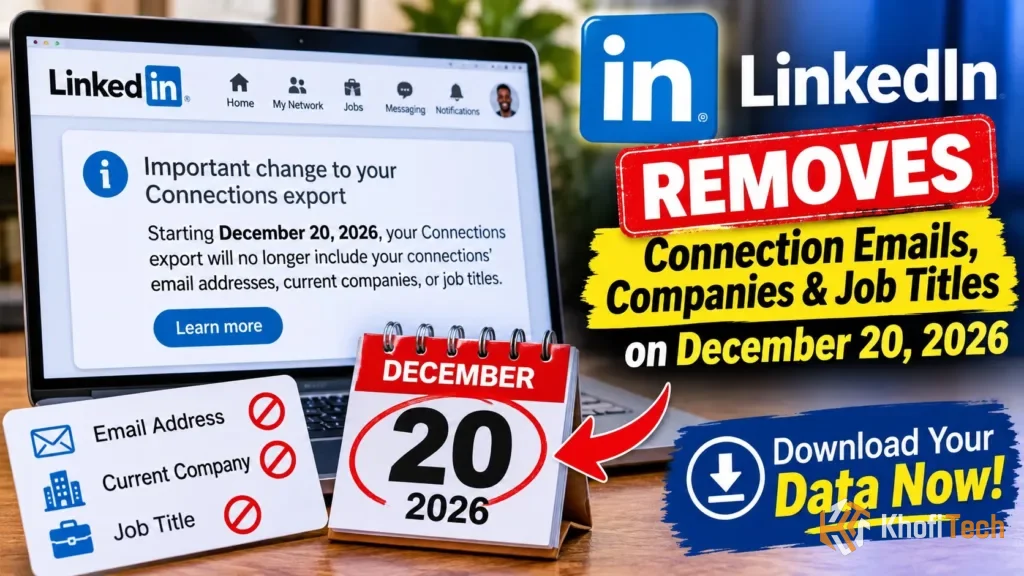
Without a major blog post or press release, LinkedIn quietly added a notice to its Download your data settings page confirming a major change: beginning December 20, 2026, your Connections export will no longer include your connections’ email addresses, current companies, or job titles.
If you use LinkedIn for job hunting, recruiting, freelancing, or staying in touch with colleagues off-platform, you have until December 20, 2026 to request a full snapshot of your network before those three columns disappear from future downloads. Here is what is changing and how to back up your file in under two minutes.
What LinkedIn Is Removing on December 20, 2026 (Before vs. After)
Currently, requesting a copy of your LinkedIn connections gives you a clean spreadsheet (Connections.csv) with six useful columns. Starting December 20, 2026, LinkedIn is cutting that export in half:
| Export Column | Before Dec 20, 2026 | From Dec 20, 2026 Onward |
|---|---|---|
| First & Last Name | Included | Included |
| LinkedIn Profile URL | Included | Included |
| Connected On Date | Included | Included |
| Current Company | Included | Removed |
| Current Job Title | Included | Removed |
| Email Address (if shared) | Included | Removed |
LinkedIn notes that you will still be able to see a connection’s employer, job title, and shared contact details by visiting their profile individually on the platform—you just will no longer get that information bundled into one searchable spreadsheet.
Why LinkedIn Is Making This Change & Why It Matters
In its settings notice, LinkedIn states the update is meant to “improve the privacy protections of your connections” while keeping your own account data portable—a move that also curbs bulk data scraping and prevents third-party AI tools from ingesting mass contact spreadsheets.
- Loss of a Career Snapshot: Your Connections CSV doubled as a point-in-time directory showing where colleagues, clients, and recruiters worked—useful when changing jobs or reaching out for referrals.
- Account Lockout Backup: If your LinkedIn account is ever restricted, hacked, or locked, a saved CSV ensures you do not lose years of professional relationships.
Step-by-Step: How to Download Your LinkedIn Connections Before Dec 20
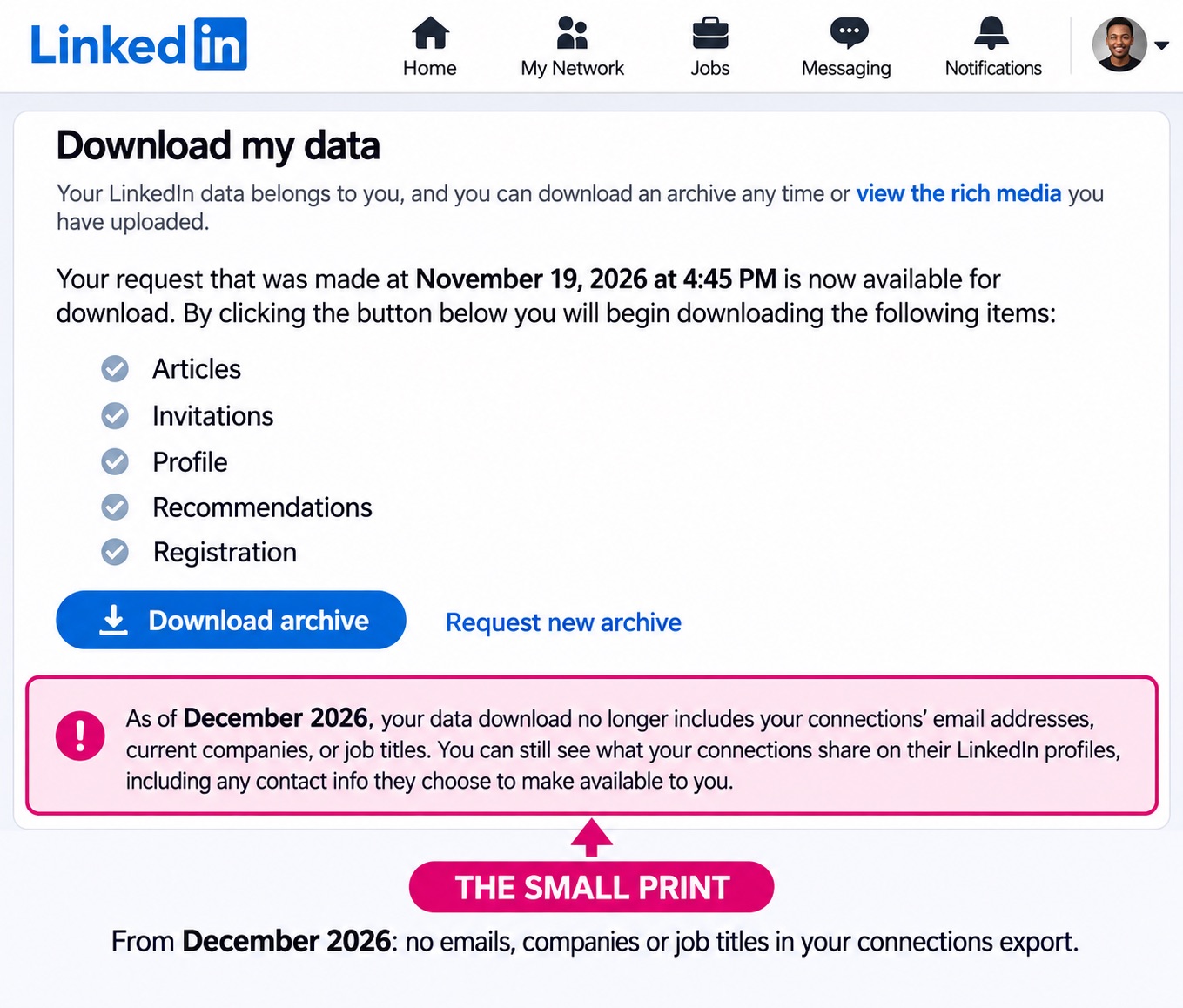
Important: You cannot request a data archive from the LinkedIn mobile app. Use a laptop or desktop browser (or switch your mobile browser to Desktop Site) and follow these steps:
- Open LinkedIn Settings: Sign in at linkedin.com, click your Me profile icon in the top bar, and choose Settings & Privacy.
- Go to Data Privacy: Click Data privacy in the left sidebar, then select Get a copy of your data under How LinkedIn uses your data.
- Choose Your Archive Type:
- For the fastest download, select Want something in particular?, tick Connections, and click Request archive.
- If you also want your messages, posts, and profile history, select Download larger data archive instead.
- Confirm & Watch Your Inbox: Enter your LinkedIn password if prompted. The Connections-only export usually arrives by email within minutes (full archives take up to 24 hours).
- Download Within 72 Hours: Once LinkedIn emails your link, download the ZIP file right away—the link expires after 72 hours—and store your
Connections.csvsafely in encrypted cloud storage or an offline drive.
Bonus Privacy Tip: Control Your Own Email Download Setting
Note that even before December 20, a connection’s email address only appears in your CSV if they explicitly allowed connections to download it (LinkedIn sets that toggle to No by default). If you want to double-check your own setting before the deadline:
- Go to Settings & Privacy > Visibility > Who can see or download your email address and verify whether the data-export download toggle is switched off.
Frequently Asked Questions
Quick answers to common questions
The change takes effect on December 20, 2026. Future Connections exports will no longer include email addresses, current employers, or job titles.
No. Use LinkedIn on a desktop browser or enable Desktop Site in your mobile browser. Go to Settings & Privacy → Data Privacy → Get a copy of your data and select Connections.
A Connections-only archive usually arrives within minutes to a few hours. A full archive can take up to 24 hours. The download link expires after 72 hours.
Go to Settings & Privacy → Visibility → Who can see or download your email address, then turn off the option allowing connections to download your email in data exports.
Ask Khofi Tech
Related stories
How to Schedule Messages on WhatsApp (iPhone and Android 2026)
WhatsApp now supports native scheduled messages on iPhone and Android. Learn how to press and hold Send to schedule texts, photos, and videos—plus fixes if Send Later isn't showing yet.
How to Activate 5G on Android and iPhone (2026)
Learn where 5G is in Settings on Android and iPhone, whether you can convert a 4G phone to 5G, Ghana's 5G rollout timeline, and battery impact tips.

How to Enable Developer Mode on iPhone
Learn how to turn on Developer Mode on iPhone in iOS 26, iOS 18, and earlier—plus how to fix Developer Mode not showing using Mac, Windows, or without Xcode.
Thread (0)