

How to Enable Developer Mode on iPhone
Learn how to turn on Developer Mode on iPhone in iOS 26, iOS 18, and earlier—plus how to fix Developer Mode not showing using Mac, Windows, or without Xcode.

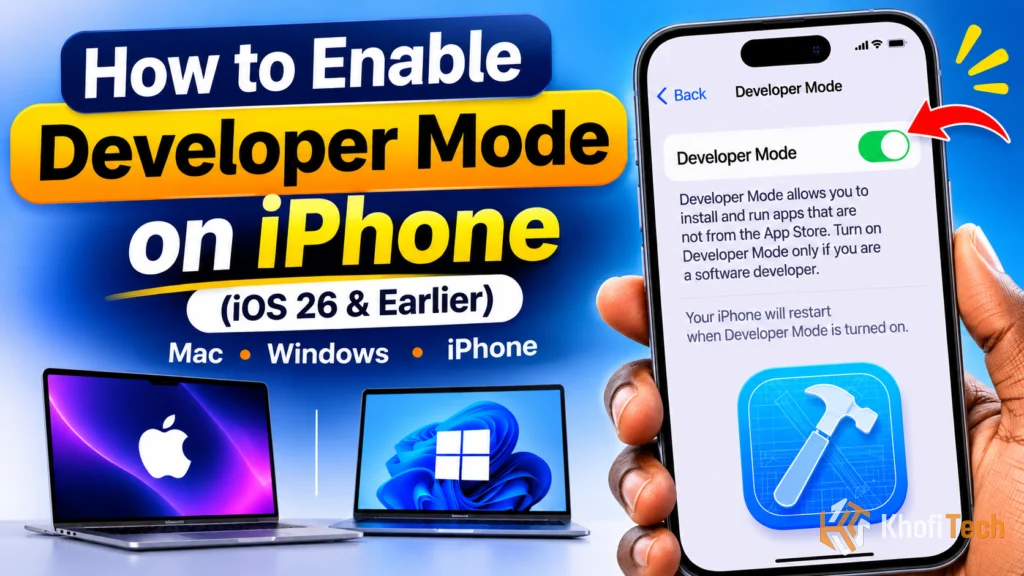
If you opened Settings > Privacy & Security on your iPhone expecting to flip on Developer Mode in iOS 26 (or iOS 18) only to find the option completely missing, you are not alone. Apple intentionally hides the Developer Mode toggle until your iPhone detects a development workflow.
Below is what Developer Mode actually does, why it stays hidden, and how to turn it on using a Mac, a Windows PC, or directly on your iPhone.
What Is Developer Mode on iPhone & Is It Safe?
Introduced in iOS 16 and carried forward through iOS 18 and iOS 26, Developer Mode is an Apple security gate required before your iPhone will run local Xcode builds, Expo development builds, or internal test apps installed outside the App Store.
- What Happens When You Turn It On: iOS relaxes specific execution checks for locally signed software, restarts your device, and asks for your passcode to confirm.
- Is It Safe? Yes—as long as you only install apps from trusted sources. Avoid random third-party signing profiles, and switch Developer Mode off again once you finish testing.
Why Is Developer Mode Not Showing in iOS 26?
On a standard retail iPhone, Apple hides the Developer Mode switch completely so everyday users do not accidentally lower device protections. It only reveals itself after one of two triggers occurs:
| Setup / Environment | How to Trigger the Toggle | Requirements & Notes |
|---|---|---|
| Mac + Xcode | Pair iPhone & run a build | Requires USB data cable & Trust prompt. |
| iPhone Only (No Mac) | Install a dev build (e.g. Expo) | Tap app icon to trigger alert. |
| Windows PC | Use a desktop iOS utility | Tools like Tenorshare unlock the toggle. |
Method 1: Enable Developer Mode with Mac & Xcode
- Connect with a Data Cable: Plug your iPhone into your Mac using a reliable USB-C or Lightning data cable (charge-only cables will not work). Unlock your iPhone and tap Trust when prompted.
- Open Xcode Device Manager: Launch Xcode on your Mac, open Window > Devices and Simulators (or the Device Hub in newer Xcode releases), and select your connected iPhone.
- Attempt One Run (If Still Hidden): If the toggle still does not appear on your phone, select your iPhone as the run destination in Xcode and click Run once—even if it fails, that first deploy attempt registers the device and unlocks the menu.
Method 2: Enable Developer Mode Without a Mac (iPhone & Windows)
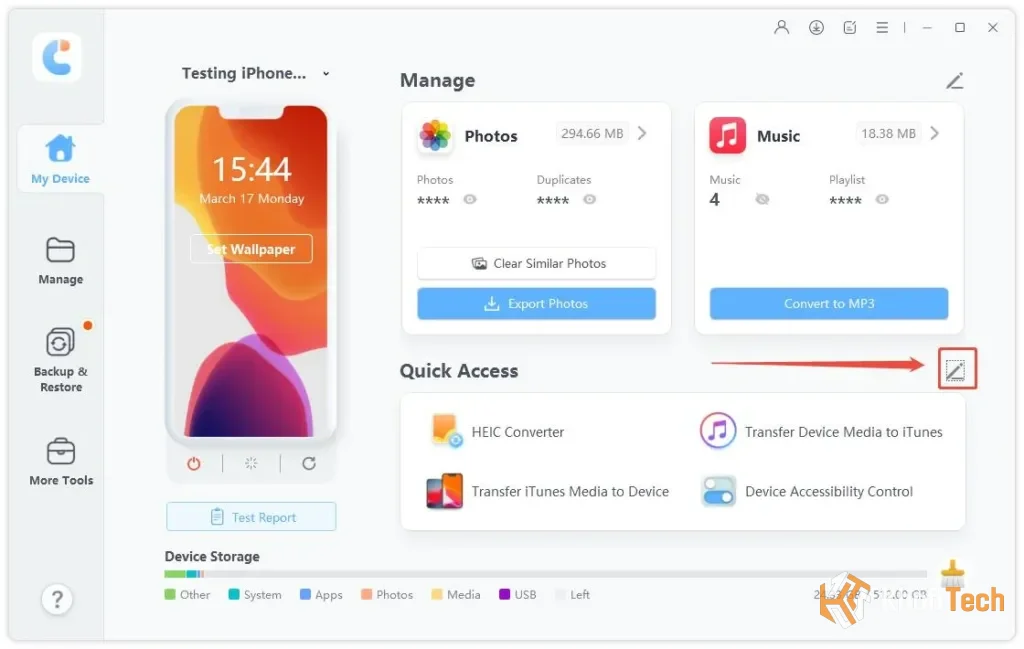
Using a Windows PC (Step-by-Step with Tenorshare iCareFone)
If you do not have a Mac or Xcode, you can unhide the Developer Mode switch on Windows using Tenorshare iCareFone’s free Developer Mode quick-access feature:
- Install & Connect Your iPhone: Download and install Tenorshare iCareFone on your Windows PC, launch the program, and plug your iPhone in using a reliable USB-C or Lightning data cable.
- Trust the Computer: Unlock your iPhone and tap Trust if a “Trust This Computer?” prompt appears, then enter your passcode so iCareFone detects your device.
- Add the Developer Mode Tool: On iCareFone’s main home screen, locate the Quick Access section, click the Edit (pen icon) next to it, and add Developer Mode to your Quick Access bar (or open More Tools > Developer Mode).
- Trigger the Setting on Your iPhone: Click the Developer Mode icon inside iCareFone and choose Open / Turn On to push the developer flag to your connected iPhone.
- Enable Developer Mode on Your iPhone: Pick up your iPhone, open Settings > Privacy & Security, scroll to the bottom, tap Developer Mode, and switch it ON.
- Restart & Confirm: Tap Restart when prompted. After your iPhone reboots and you unlock it, tap Turn On in the system pop-up alert and enter your device passcode to finish.
How to Toggle It On, Verify Status, or Turn It Off
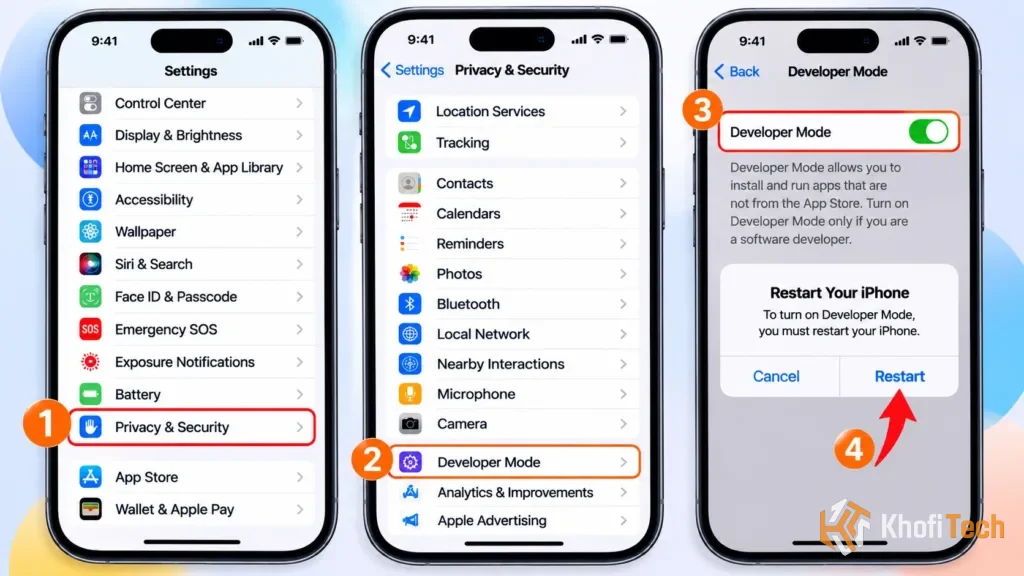
Once the option appears on your iPhone, follow these final steps to activate it:
- Open Settings > Privacy & Security and scroll all the way to the bottom.
- Tap Developer Mode and flip the switch ON.
- Tap Restart when iOS prompts you to reboot.
- After your iPhone restarts and you unlock it, tap Turn On on the confirmation alert and enter your device passcode.
How to Check or Disable Later: Return to Settings > Privacy & Security > Developer Mode at any time—if the switch is green, Developer Mode is active. To turn it off, flip the switch off and restart your iPhone.
Frequently Asked Questions
Quick answers to common questions
Apple hides Developer Mode by default on iOS 16 and newer. The option usually appears after connecting to Xcode or installing a development-signed app.
You can use an internal development build, such as an Expo EAS development build, or a Windows utility such as Tenorshare iCareFone.
It allows you to install, run, and debug development apps outside the App Store. Your iPhone requires a restart and passcode confirmation.
Yes, provided you only install apps from trusted developers. Avoid untrusted installation files and disable Developer Mode when you no longer need it.
Ask Khofi Tech
Related stories
How to Disable Startup Programs in Windows 11 & 10
Learn how to disable startup programs in Windows 11 and Windows 10 to speed up your PC boot time. Step-by-step guide using Task Manager and Settings.
Best Web Hosting Companies in Ghana (2026) – Top 5 Ranked
Compare the best web hosting companies in Ghana in 2026, including StormerHost, HostAfrica, and UltraHost. Check GHS pricing, MoMo support, and uptime

Why Phones and Laptops Cost More in 2027
Rising RAM and SSD costs from AI data centers are pushing up 2027 phone and laptop prices. See how the memory crunch affects specs and how to buy smart
Thread (0)