

How to Schedule Messages on WhatsApp (iPhone and Android 2026)
WhatsApp now supports native scheduled messages on iPhone and Android. Learn how to press and hold Send to schedule texts, photos, and videos—plus fixes if Send Later isn't showing yet.

After years of users relying on third-party workarounds, WhatsApp officially launched built-in Scheduled Messages for both iPhone and Android in late November 2026. Whether you want to send a midnight birthday wish, queue a client follow-up for morning hours, or message someone across time zones, you can now delay delivery directly inside any individual or group chat.
Below is how to use WhatsApp’s new native scheduler, what to do if the option is not showing up on your phone yet, and reliable backups for iPhone, Android, and WhatsApp Business.
How to Schedule a Message on WhatsApp (Official Method)
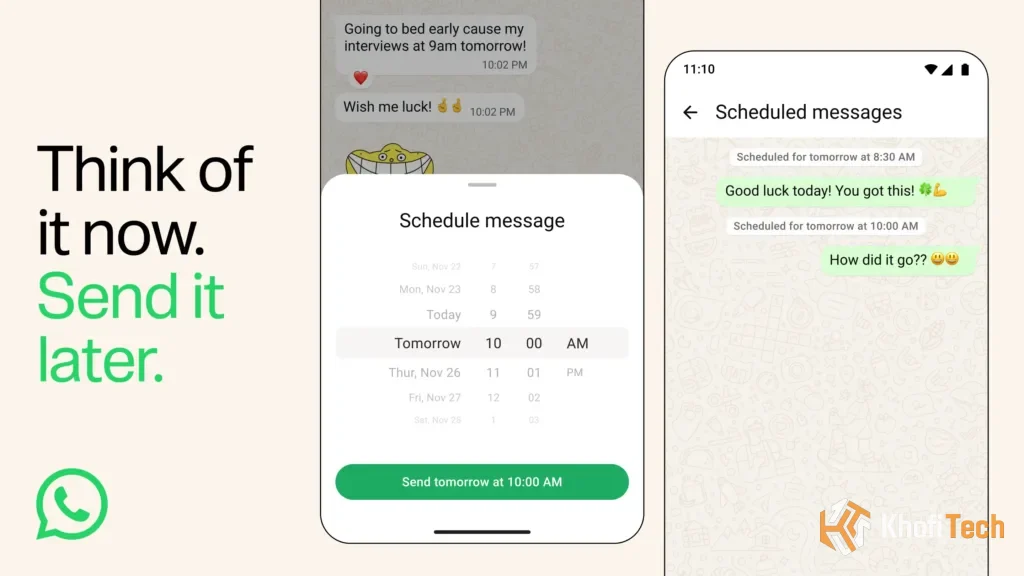
Once the update is active on your account, scheduling works the exact same way on both iPhone (iOS) and Android without opening any extra menus:
- Open Your Chat: Launch WhatsApp and open any individual chat or group conversation.
- Compose Your Message: Type your text message—or attach a photo or video—just like you normally would.
- Press and Hold the Send Button: Instead of tapping the green/blue Send icon once, press and hold it for a second until the scheduling menu pops up.
- Choose Date & Time: Pick the exact day and time you want the message delivered (anywhere from 10 minutes up to 14 days in advance).
- Confirm Schedule: Tap to confirm. WhatsApp queues your message and delivers it automatically at your chosen time.
Rules, Limits & How to View or Cancel Scheduled Messages
| Feature / Rule | How It Works in WhatsApp | Important Details |
|---|---|---|
| Schedule Window | 10 minutes to 14 days ahead | Works in 1-on-1 & group chats. |
| Supported Media | Text, links, photos & videos | Send one media item per schedule. |
| Phone Off / Offline | Still delivers on time | End-to-end encrypted even offline. |
| Recipient View | Looks like a normal message | No “Scheduled” label is shown. |
How to View or Delete a Scheduled Message: Open the chat, tap the contact or group name at the top to open Chat Info, and look for the Scheduled Messages section. From there, you can review queued messages or delete one before it sends—the recipient is never notified if you cancel it.
Why Is “Send Later” / Schedule Not Showing Up Yet?
If pressing and holding the Send button does nothing (or only records/triggers a normal send), there are two common reasons:
- Phased Global Rollout: WhatsApp began rolling out native scheduled messages on November 25–26, 2026, and is enabling it gradually across regions over the coming weeks.
- Outdated App Version: Open the Apple App Store or Google Play Store, search for WhatsApp Messenger, and tap Update. Even after updating, the toggle activates server-side, so check again every few days.
Backup Method 1: Schedule WhatsApp Messages on iPhone (Apple Shortcuts)
If your iPhone account hasn’t received the native button yet—or you want to schedule a message more than 14 days ahead—Apple’s built-in Shortcuts app handles it cleanly for free:
- Open the Shortcuts app on your iPhone and tap the Automation tab at the bottom.
- Tap + (New Automation) and choose Time of Day.
- Set the exact time and date/repeat schedule, select Run Immediately, and tap Next.
- Tap New Blank Automation > Add Action, search for WhatsApp, and choose Send Message via WhatsApp.
- Type your message, select your recipient, and tap Done. (Note: Your iPhone must be powered on and connected to the internet at the scheduled time for Shortcuts to fire.)
Backup Method 2: Android & WhatsApp Business Auto-Messages
- Android Workaround (SKEDit): While waiting for the native rollout on Android, apps like SKEDit can automate WhatsApp messages, though they require Accessibility permission and keeping your screen unlocked at send time—making WhatsApp’s built-in scheduler much cleaner once it reaches your phone.
- WhatsApp Business Auto-Replies: If you run a business account and want automatic responses when customers message you, open WhatsApp Business > Business Tools > Away Message or Greeting Message to set automated replies outside business hours.
Ask Khofi Tech
Related stories

TraffiTech-GH Guide: Portal, Speed Limits & Fines (2026)
Learn how TraffiTech-GH works in Ghana: official website and portal access, urban and highway speed limits, fine payment, and key rules.
How to Activate 5G on Android and iPhone (2026)
Learn where 5G is in Settings on Android and iPhone, whether you can convert a 4G phone to 5G, Ghana's 5G rollout timeline, and battery impact tips.
How to Enable Developer Mode on iPhone
Learn how to turn on Developer Mode on iPhone in iOS 26, iOS 18, and earlier—plus how to fix Developer Mode not showing using Mac, Windows, or without Xcode.
Thread (0)