

How to Free Up Phone Storage Without Losing Files
Running out of phone storage? Learn how to free up space on Android and iPhone without deleting important photos, videos, or files.


Running out of phone storage can be frustrating, especially when you have important photos, videos, and apps you don’t want to lose. Fortunately, you can free up space on your Android phone or iPhone without deleting valuable files.
1. Check What Is Using Your Storage
Start by checking which files and apps take up the most space.
- Android: Open Settings and look for Storage.
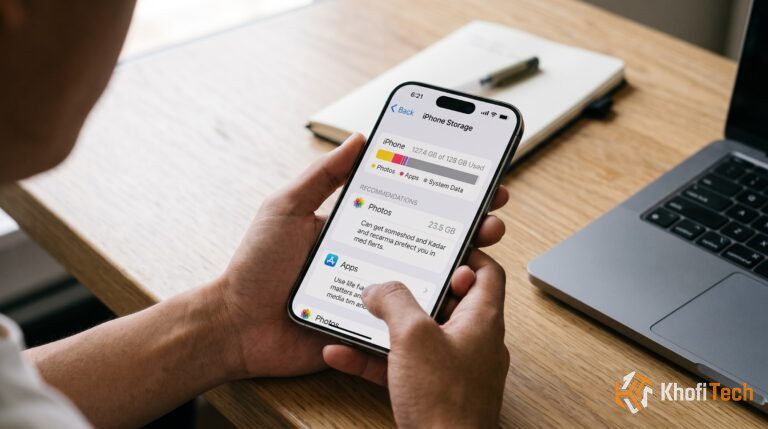
- iPhone: Go to Settings → General → iPhone Storage.
This helps you identify what needs attention first.
2. Clear App Cache on Android
Some apps store temporary files that take up storage.
Go to Settings → Apps → select an app → Storage → Clear cache. The exact steps may vary by phone.
Important: Choose Clear cache, not Clear data, unless you understand the consequences.
3. Remove Unnecessary Downloads
Check your Downloads folder for old documents, videos, and files you no longer need. Review each item before deleting it.
You can also remove duplicate photos or videos after confirming which copies you want to keep.
4. Back Up Photos and Videos
Photos and videos often consume the most storage.
Back up important files to a trusted cloud service or computer before removing local copies. Confirm that the backup is complete first.
5. Uninstall or Offload Unused Apps
Remove apps you rarely use.
- Android: Uninstall apps you no longer need.
- iPhone: Go to Settings → General → iPhone Storage, select an app, then choose Offload App to remove the app while keeping its documents and data where supported.
6. Clean Up WhatsApp Media
WhatsApp videos, photos, and documents can quickly fill your storage.
Open WhatsApp → Settings → Storage and Data → Manage Storage. Review large files and unnecessary media before deleting anything.
Final Thoughts
You don’t need to delete important memories to free up phone storage. Start by checking your storage usage, removing unnecessary downloads, cleaning up WhatsApp media, and backing up large files safely.
Frequently Asked Questions
Quick answers to common questions
No. Clearing an app’s cache normally removes temporary files, not photos stored in your gallery.
Recently deleted photos may remain in a trash or recently deleted folder. Some apps also retain cached files, downloads, or offline content.
Some services offer limited free storage, but larger storage plans may require payment.


Thread (0)