

How to Check iPhone Battery Cycle Count (iPhone 11 to 14)
Can’t find the cycle count on your iPhone 11, 12, 13, or 14? Here is why Apple hides it, how to extract it via iOS Analytics, and 1-click desktop diagnostic tools.

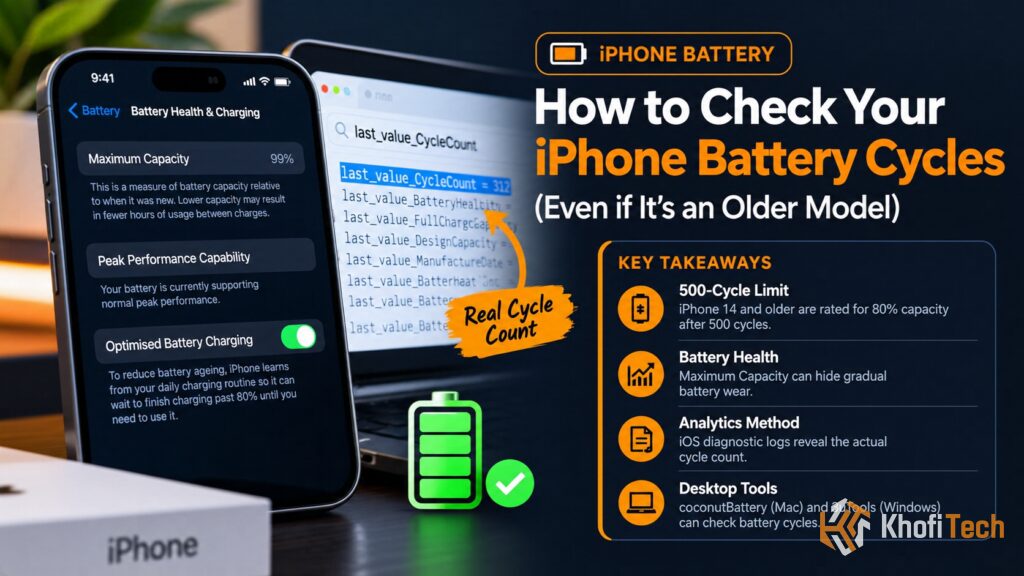
If you own an iPhone 15, iPhone 16, or newer, finding your battery cycle count takes five seconds: you open Settings > Battery > Battery Health, and Apple displays the exact count right beneath your maximum capacity percentage. However, if you are using an iPhone 11, iPhone 12, iPhone 13, or iPhone 14, that menu item does not exist—even if your device is running the latest iOS 18 software.
This omission leads many users to assume older iPhone hardware cannot track charge cycles. In reality, the Texas Instruments gas gauge chip embedded in every iPhone battery has logged every full discharge cycle since the device was unboxed. Apple simply restricts the native UI toggle to newer generations.
Whether you are auditing your daily driver or verifying a used iPhone before buying, here is how to extract the exact hardware battery cycle count from an iPhone 11 through iPhone 14 without jailbreaking.
What Is a Charge Cycle (And Why Does It Matter)?
A battery cycle does not measure how many times you plug your phone into a charger. One full charge cycle represents discharging 100% of your battery’s rated milliamp-hour (mAh) capacity, regardless of how many sessions it takes.
- If you discharge your iPhone from 100% to 50% today, plug it in overnight, and discharge another 50% tomorrow, that counts as one full cycle (50% + 50% = 100%).
- If you top up from 80% to 100% every day, it takes five days of charging to log a single complete cycle (20% × 5 = 100%).
Every full cycle physically stresses the lithium-cobalt-oxide cathode lattice, gradually reducing the amount of electrical energy the cell can hold. Knowing your cycle count tells you whether an 88% battery health reading is genuine or artificially masked by software recalibration.
| iPhone Generation | Rated Cycle Lifespan | Settings App Support | Fastest Extraction Method |
|---|---|---|---|
| iPhone 15 & 16 Series | 1,000 cycles to 80% | Native (Built-in) | Settings > Battery > Battery Health |
| iPhone 14 Series | 500 cycles to 80% | Hidden | Analytics Log / Siri Shortcut |
| iPhone 13 Series | 500 cycles to 80% | Hidden | Analytics Log / Siri Shortcut |
| iPhone 12 Series | 500 cycles to 80% | Hidden | Analytics Log / coconutBattery |
| iPhone 11 & Earlier | 500 cycles to 80% | Hidden | Analytics Log / coconutBattery |
Want to slow down cycle degradation? Learn whether capping daily voltage helps in our guide on Does the 80% Battery Limit Actually Work? (iOS & Android Tested).
Method 1: Find Cycle Count Using Built-in iOS Analytics (No Computer)
Every 24 hours, iOS compiles an extensive system diagnostic report. Inside that report sits the exact cycle count read directly from your battery management chip.
Step 1: Check If iPhone Analytics Is Active
- Open Settings on your iPhone.
- Scroll down and tap Privacy & Security.
- Scroll to the bottom and select Analytics & Improvements.
- Verify that Share iPhone Analytics is toggled ON.
Note: If this toggle was switched OFF, your iPhone has not been saving logs. Turn it ON and wait 24 to 48 hours for iOS to generate its first diagnostic log file before proceeding.
Step 2: Locate and Open the Log File
- Under Analytics & Improvements, tap Analytics Data.
- You will see an alphabetical list containing hundreds of system logs. Scroll down until you reach files beginning with
Analytics-. - Look for the most recent file formatted like this:
Analytics-YYYY-MM-DD-xxxxxx.ips.ca.synced
(Choose the one with today’s or yesterday’s date). - Tap the file to open it.
Step 3: Extract the “last_value_CycleCount”
The file contains thousands of lines of raw code. Do not read it manually:
- Tap the Share icon (box with upward arrow) in the top-right corner.
- Select Copy (or share it directly into the native Notes app).
- Open Apple Notes, create a blank note, and paste the text.
- Tap the three dots (
...) in the top corner and select Find in Note. - Type:
last_value_CycleCount - The number directly adjacent to this string (for example,
"last_value_CycleCount": 427) is your iPhone’s true hardware battery cycle count.
Typical for a phone under one year old. Maximum capacity usually sits between 90% and 100%. Peak performance capability remains unthrottled.
Normal for devices 1.5 to 2.5 years old. Real capacity sits between 80% and 88%. You will begin noticing shorter screen-on time during heavy loads.
Apple classifies the battery as consumed. Internal impedance increases, leading to potential random shutdowns and lower peak processor clocks.
Method 2: Use the “Battery Stats” Siri Shortcut (Fastest on Mobile)
If copying massive log files into Apple Notes feels tedious, a pre-built Siri Shortcut can parse the analytics file automatically via the iOS Share Sheet:
- Download a reputable battery diagnostic shortcut (such as Battery Stats or Battery Cycle from RoutineHub or GitHub) into your Shortcuts app.
- Navigate back to Settings > Privacy & Security > Analytics & Improvements > Analytics Data.
- Tap the latest
Analytics-YYYY-MM-DD-xxxxxx.ips.ca.syncedfile. - Tap the Share icon and tap the Battery Stats shortcut in the share sheet list.
- The shortcut will instantly read the JSON data and display a popup window showing:
- Exact Battery Cycle Count
- Original Design Capacity (e.g., 3,227 mAh on iPhone 13)
- Current Maximum Full Charge Capacity (e.g., 2,890 mAh)
- True Calculated Battery Health Percentage
Buying a pre-owned Apple device? Don’t rely solely on battery percentage. Read our complete checklist on What to Check Before Buying a Used iPhone (2026 Checklist) to verify parts and avoid iCloud locks.
Method 3: Check Cycles via Mac or Windows PC (Instant Read)
If you don’t have analytics files saved on your iPhone, connecting your device to a desktop computer queries the battery controller over USB instantly without waiting 24 hours.
On Mac (coconutBattery)
- Download the free version of coconutBattery for macOS.
- Connect your iPhone to your Mac via a Lightning or USB-C cable and tap Trust This Computer on your phone.
- Open coconutBattery and click the iOS Device tab at the top.
- The software displays your current charge, real-time temperature, full charge capacity, manufacture date, and Cycle Count.
On Windows PC (3uTools)
- Install 3uTools on your Windows PC.
- Plug in your iPhone using a genuine USB cable and trust the connection.
- On the main Device Info dashboard, locate the Battery Life section.
- Click Details next to the battery percentage. A diagnostic panel will open, detailing the battery serial number, design capacity, current capacity, and total Charge Times (Cycles).
How to Tell If Your Battery Needs Immediate Replacement
Do not judge your battery health solely by the number you see in iOS Settings. If your iPhone 11, 12, 13, or 14 exhibits any of the following symptoms, the cell has reached end-of-life status regardless of what the percentage reads:
- The Cycle Count Exceeds 600: Once past 500–600 cycles, internal resistance climbs significantly. Heavy workloads (like camera recording or gaming) will cause rapid battery dips.
- Unexpected Throttling or Shutdowns: If your phone suddenly shuts down at 20% or feels sluggish, navigate to Settings > Battery > Battery Health. If you see a message stating “Performance management has been applied,” your battery can no longer deliver peak power.
- Visible Screen Lifting or Screen Separation: If you notice the display lifting off the frame or a faint yellow pressure mark on the OLED panel, the lithium pouch has swollen. Discontinue charging immediately and replace the battery safely.
Frequently Asked Questions
Quick answers to common questions
Apple introduced native cycle counts in the Battery Health menu alongside the iPhone 15 launch. While older models have the hardware sensors to track cycles, Apple opted not to backport the updated settings UI to older chipsets in iOS 17 and iOS 18.
The cycle count is recorded on an encrypted microchip inside the battery's Battery Management System (BMS). It cannot be cleared through a standard factory reset. However, third-party repair shops can use external EEPROM reprogramming programmers to reset the cycle count to zero. Checking diagnostics via coconutBattery or 3uTools often exposes mismatches between the serial number and manufacture date.
Yes. Apple designs iPhone 14 and earlier batteries to retain 80% capacity at 500 cycles. Retaining 85% at 500 cycles means your daily charging habits—such as avoiding high heat and preventing 0% deep discharges—have kept the cell in above-average health.
Wireless charging does not inherently log more cycles than wired charging. However, inductive charging generates significantly more ambient heat. Sustained high temperatures accelerate chemical degradation, which can lower your battery's full charge capacity faster per cycle.

Thread (0)