

Why Phone Hotspot Keeps Disconnecting on PC: 6 Real Fixes
Phone hotspot keeps disconnecting from your PC or laptop? Here is why iOS and Android silently kill connections, how to fix Windows adapter sleep settings, and stabilize tethering.

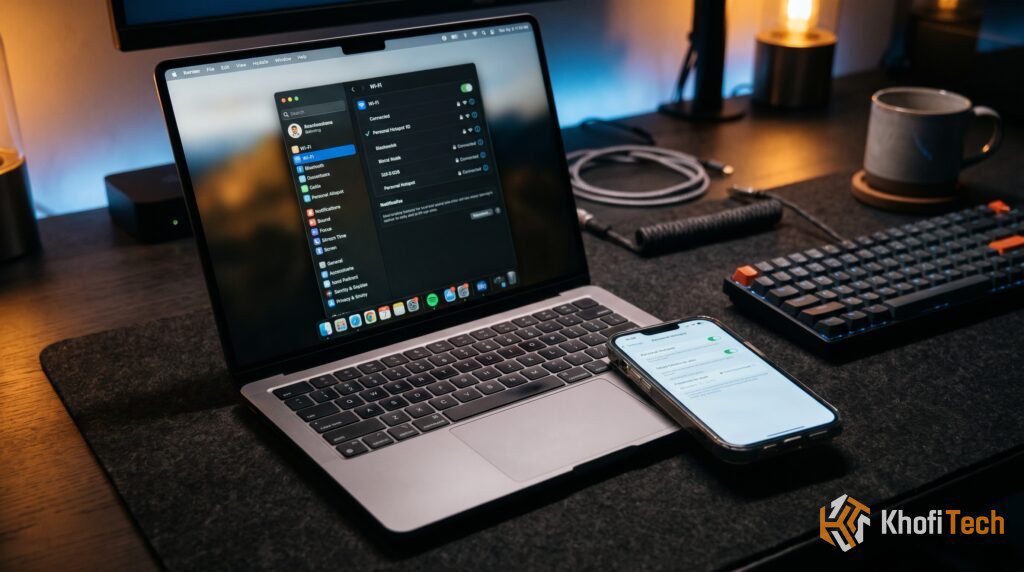
1. Fix the Phone-Side Timeout (Android & iPhone)
Both mobile platforms treat personal hotspot broadcasting as an emergency feature rather than a permanent router replacement. Consequently, their default settings will cut off broadcasting at the first sign of inactivity.
On Android (Disable Auto-Turn Off)
Modern Android versions (Samsung One UI, Google Pixel, Xiaomi HyperOS, and OnePlus OxygenOS) include a power-saving feature that automatically shuts down the hotspot if no data flows for 5 to 10 minutes.
- Open Settings and navigate to Connections (or Network & Internet).
- Tap Mobile Hotspot and Tethering > Mobile Hotspot.
- Look for Turn off automatically (or tap Advanced on Pixel devices).
- Change the timeout setting from “5 minutes” or “10 minutes” to Never (or Always Keep Hotspot On).
- Verify that Battery Saver is turned off, as power-saving modes will override this setting.
On iPhone (Prevent the iOS Lock Screen Sleep Bug)
Apple uses a proprietary discovery mechanism called “Instant Hotspot” for Apple ecosystem devices. If you are tethering to a Windows PC, however, the iPhone treats your laptop like an untrusted third party. When your iPhone screen locks and goes black, iOS puts the Wi-Fi broadcast beacon into low-power mode, causing Windows to lose the handshake.
- Go to Settings > Battery and turn off Low Power Mode. When Low Power Mode is on, iOS restricts background networking tasks automatically.
- Open Settings > Personal Hotspot.
- Ensure Allow Others to Join is toggled ON.
- Toggle Maximize Compatibility to ON. This forces your iPhone to broadcast over the 2.4 GHz band instead of 5 GHz, preventing handoff disconnects.
- The Connection Rule: Keep the Personal Hotspot settings screen open on your iPhone until your Windows laptop successfully connects and loads a webpage. Once the data stream is active, you can lock your screen.
| Symptom | Primary Culprit | Target Fix |
|---|---|---|
| Hotspot switches off when phone is idle | Android Hotspot Timeout / Battery Saver | Set “Turn off hotspot automatically” to Never |
| iPhone hotspot disappears after locking screen | iOS Low Power Mode / Beacon Sleep | Disable Low Power Mode & toggle Maximize Compatibility |
| PC drops connection when running on battery | Windows Wi-Fi Adapter Power Management | Uncheck “Allow computer to turn off device” in Device Manager |
| Connection drops when moving across the room | 5 GHz Frequency Attenuation | Switch Hotspot AP Band from 5 GHz to 2.4 GHz |
| Phone gets hot, then disconnects | Thermal Protection Shutdown | Remove phone case, avoid direct sunlight, or use USB Tethering |
2. Disable Windows Wi-Fi Adapter Sleep Settings
If your phone’s hotspot remains turned on but your Windows laptop randomly disconnects—especially when running on battery power—the issue is usually located inside Windows Device Manager.
By default, Windows has permission to put your laptop’s internal network adapter into a low-power sleep state whenever it perceives a brief lull in data transfer.
How to Prevent Windows from Sleeping Your Network Card:
- Right-click the Start Button and select Device Manager (or press
Win + Xand hitM). - Expand the Network adapters branch.
- Locate your primary Wi-Fi card (usually named Intel Wi-Fi 6/6E/7, Realtek RTLxxxx, or Qualcomm Atheros).
- Right-click your Wi-Fi card and select Properties.
- Click on the Power Management tab at the top.
- Uncheck the box that says: “Allow the computer to turn off this device to save power.”
- Click OK and restart your laptop.
Note for Windows 11 Users: If the Power Management tab is missing, your system manufacturer uses modern Modern Standby (S0). In this case, open Settings > Power & battery and set your power mode to Best performance while tethering.
3. Switch Hotspot Band from 5 GHz to 2.4 GHz
Modern flagship smartphones allow you to choose which frequency band your mobile hotspot broadcasts over: 2.4 GHz or 5 GHz.
- Why 5 GHz Disconnects: 5 GHz provides theoretical speeds over 500 Mbps, but high-frequency radio waves struggle to penetrate solid objects. If you set your phone on a table and move your laptop behind a monitor or across a room, the signal-to-noise ratio drops rapidly, causing Windows to sever the link. Furthermore, older laptop network cards struggle to stay locked onto dynamic 5 GHz channels.
- Why 2.4 GHz Solves It: 2.4 GHz operates on longer radio waves with superior physical penetration. While maximum throughput caps out lower (~50–100 Mbps real-world), it provides rock-solid connection stability that resists dropouts.
How to change it: On Android, open your Hotspot settings, tap AP Band, and select 2.4 GHz Band. On iPhone, simply toggle Maximize Compatibility to ON in your Personal Hotspot menu.
Tired of hotspot quirks and thinking about buying a portable router? Read our deep dive on Why MiFi Consumes More Data Than Phone Data (Real Fixes) before switching hardware.
4. Address Thermal Throttling & Battery Temperature
Broadcasting a wireless hotspot while processing 4G/5G baseband signals forces your phone’s modems and Wi-Fi chips to run continuously at high wattage. This generates intense internal heat.
Smartphone thermal management systems have hardcoded hardware failsafes:
- The 38°C–40°C Threshold: When the internal thermal sensors report temperatures approaching 40°C (104°F), the operating system will downclock CPU cores and throttle transmission power.
- The Emergency Cutoff: If ambient heat is high (such as working in a non-air-conditioned room or in direct sunlight) and you plug the phone into a charger while hotspotting, the battery management system (BMS) will terminate the hotspot completely to prevent thermal runaway and lithium swelling.
The Fix: Take your phone out of thick protective cases while tethering. Place it on a flat, hard surface (like a desk or metal stand) rather than on beds or sofas that trap heat. Never place your phone on your laptop’s exhaust vents while tethering.
5. The Permanent Alternative: USB Tethering
If you are working from a fixed desk and require a stable connection for hours—such as remote Zoom meetings, continuous gaming, or heavy file uploads—stop using wireless Wi-Fi tethering altogether.
Wireless hotspots introduce latency, Wi-Fi interference, packet loss, and battery drain. USB Tethering bypasses the wireless radio entirely:
- Zero Disconnects: The connection operates as a physical Ethernet-over-USB interface. It cannot drop due to sleep bugs or Wi-Fi interference.
- Lower Ping / Latency: Cuts latency by 10ms to 25ms compared to broadcasting over crowded local airwaves.
- Charges Your Device: Your laptop keeps your smartphone charged while you work, eliminating the need for separate charging bricks.
- Less Heat Generation: Your phone disables its high-drain Wi-Fi broadcasting transmitter, resulting in noticeably cooler operation.
How to Set Up USB Tethering in 10 Seconds:
- Connect your smartphone to your laptop using a high-quality USB-C or Lightning cable.
- On Android: Open Settings > Connections (Network) > Mobile Hotspot and Tethering, and toggle USB Tethering to ON.
- On iPhone: Plug into your computer and tap Trust This Computer on your iPhone display. Open Settings > Personal Hotspot and enable Allow Others to Join. Windows/Mac will automatically recognize the device as a wired network adapter.
Tethering to a laptop often causes background data drain from Windows updates. Estimate your daily requirements with our interactive Internet Data Calculator.
Frequently Asked Questions
Quick answers to common questions
iOS prioritizes standby battery life above all else. When an iPhone locks its screen and detects no active, continuous data stream, it puts the Wi-Fi broadcast transmitter to sleep to prevent passive battery drain. To avoid this, keep the Personal Hotspot settings menu open while initiating the connection, turn off Low Power Mode, and ensure you have enabled "Maximize Compatibility."
No. Setting your network as a "Metered Connection" on Windows simply tells the operating system to pause automatic background software updates and OneDrive file syncing. It does not disconnect your network adapter or throttle your browsing speed.
This typically occurs when your phone's Access Point Name (APN) settings do not have tethering permissions configured with your carrier, when your cellular mobile data bundle is completely exhausted, or when an aggressive VPN on your phone blocks secondary routing to tethered clients.
While technically possible, running a smartphone mobile hotspot 24/7 is not recommended. Continuous charging paired with sustained wireless transmission keeps internal battery temperatures high, which significantly accelerates lithium chemical degradation and can cause battery swelling over several months. For permanent home Wi-Fi, a dedicated 4G/5G desktop router or pocket MiFi is a safer hardware investment.
Thread (0)