

How to Check Battery Health & Cycle Count on Android (2026)
Learn how to check your exact battery health and charge cycle count on Android. Step-by-step methods for Samsung Galaxy, Google Pixel, Xiaomi, and OnePlus.

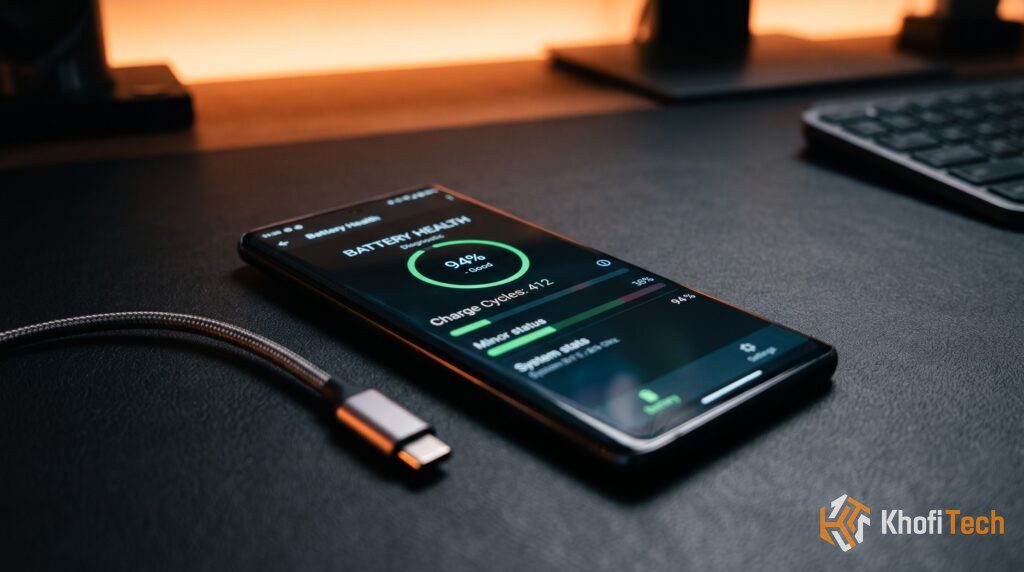
Unlike iOS, which centralizes battery health percentage inside a single settings menu, Android handles battery diagnostics differently across manufacturers. Modern versions of Android (Android 14, 15, and 16) include native cycle counting, while brand skins like Samsung One UI, Xiaomi HyperOS, and OnePlus OxygenOS use proprietary diagnostic menus and hidden telemetry logs.
A charge cycle represents one full discharge of 100% battery capacity. Because lithium-ion cells lose capacity after 500 to 800 cycles, knowing your exact cycle count tells you whether daily battery drain stems from an aging battery or rogue background apps.
Here is how to check your battery health and cycle count across every major Android brand.
Curious if high-wattage charging is wearing out your battery cells faster? Read our scientific analysis on Does Fast Charging Actually Kill Your Battery? The Real Science.
Google Pixel: Native Battery Information (Android 14 & Newer)
Google built native battery cycle tracking directly into stock Android.
1. Open Settings on your Pixel.
2. Scroll down and tap About phone.
3. Tap Battery information.
4. You will see:
- Cycle count: The total number of complete charge cycles completed.
- Manufacture date: The physical date the cell was assembled.
- First use date: The date the phone was first powered on.
If your cycle count is below 400, your battery is in prime condition. Crossing 800 cycles indicates your battery has likely degraded to roughly 80% of its original design capacity.
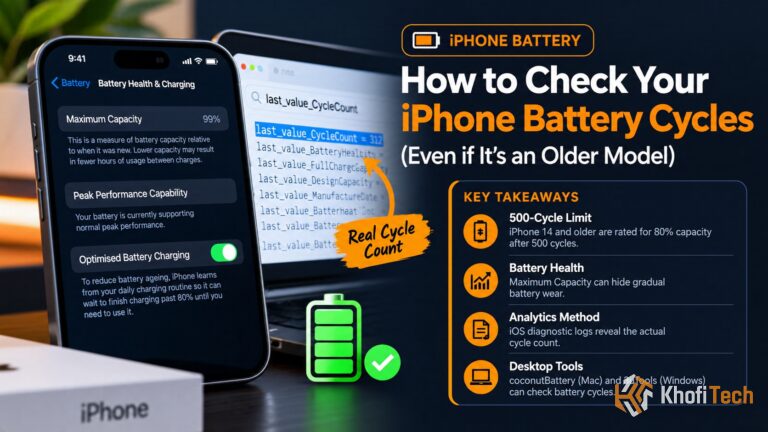
Also inspecting an Apple device? Follow our companion guide on How to Check iPhone Cycle Count: 3 Simple Methods to detect artificially boosted battery health.
Samsung Galaxy: Samsung Members Diagnostic & One UI
Samsung restricts raw cycle count visibility in standard menus, but provides hardware testing through its built-in diagnostics suite.
Method A: The Samsung Members App
- 1. Open the pre-installed Samsung Members app.
- 2. Tap the Support tab at the bottom right.
- 3. Under Diagnostics, tap Phone diagnostics.
- 4. Scroll down and select Battery status.
- 5. The system will run a test and display your Life rating:
- Good / Normal: Operating at acceptable capacity.
- Action Required / Weak: The battery has experienced high degradation and warrants replacement.
Method B: One UI 6 & 7 Battery Information
On recent Galaxy models running updated One UI versions:
- 1. Go to Settings > About phone.
- 2. Tap Battery information.
- 3. Review your Rated Capacity vs Typical Capacity (e.g., 4,855 mAh rated vs 5,000 mAh typical).
Noticing elevated temperatures or thermal throttling warnings while monitoring your battery metrics? Read our diagnostic guide on Samsung Galaxy Overheating When Charging: 5 Causes & Fixes to resolve charging heat spikes and protect your cell longevity.
Xiaomi, Redmi & POCO: The Hidden Dialer Code
Xiaomi devices running HyperOS or MIUI feature an internal hardware engineering menu accessible via phone dialer codes.
- 1. Open the default Phone / Dialer app.
- 2. Enter the following code exactly:
*#*#6485#*#*- 3. A diagnostic screen titled Battery and Charger Info will pop up immediately.
- 4. Locate the following system keys:
Universal Method: Read Battery APIs with Shizuku & aBattery
If your phone’s manufacturer hides cycle stats, you can read the Android system battery manager directly using Shizuku (wireless ADB permissions) and aBattery (open-source reader). This method requires no rooting or PC.
How to Set Up Shizuku & aBattery
- Install Shizuku and aBattery from the Google Play Store.
- Enable Developer Options on your phone (Go to Settings > About phone and tap Build Number 7 times).
- Inside Developer Options, toggle on Wireless debugging while connected to Wi-Fi.
- Open Shizuku, tap Pairing, and enter the 6-digit code provided in the wireless debugging prompt.
- Return to Shizuku and tap Start.
- Open aBattery and grant it permission through Shizuku.
Result: aBattery reads Android’s hardware HAL layer, showing your exact charge cycles, current health percentage, and temperature in real-time.
What Your Cycle Count Numbers Actually Mean
Frequently Asked Questions
Quick answers to common questions
Apps like AccuBattery provide reliable estimates, but only after tracking dozens of full charge sessions over several weeks. Methods using native system menus, dialer codes, or ADB read the device's hardware Coulomb counter directly from the kernel, giving an immediate, tamper-proof reading.
No. Cycle count is strictly tied to energy consumed and replaced. Discharging 50% today and 50% tomorrow equals one cycle, regardless of whether you recharged with a 10W standard charger or a 100W fast charger.
Most Android manufacturers engineer batteries to maintain 80% health at 800 complete cycles. Once past 800 cycles, internal resistance increases, leading to sudden battery percentage drops and thermal throttling under load.

Thread (0)