

Samsung Galaxy Overheating When Charging: 5 Causes & Real Fixes (2026)
Is your Samsung Galaxy getting hot while charging? Discover the real hardware causes—from non-PPS power bricks to wireless coil resistance—and 5 practical fixes.

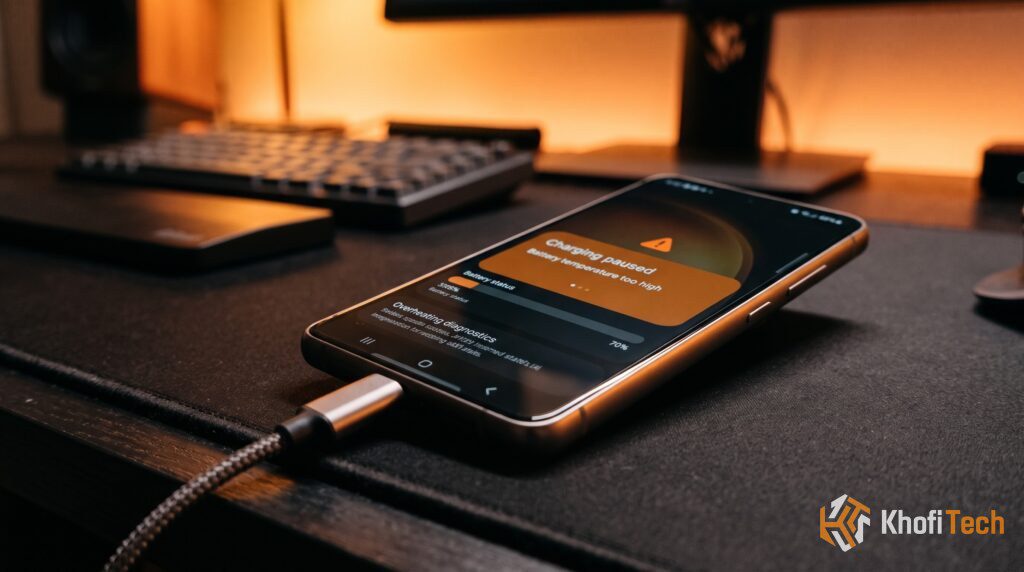
It is normal for a Samsung Galaxy phone to feel slightly warm during a charging session—especially within the first 30 minutes of a 25W or 45W top-up. However, if your phone becomes uncomfortably hot to the touch, throttles its charging speed down to a crawl, or throws an error stating “Charging paused: Battery temperature too high,” your device is suffering from thermal distress.
Lithium-ion cells degrade rapidly when exposed to temperatures exceeding 45°C (113°F) under high voltage. When internal heat spikes, Samsung’s Power Management Integrated Circuit (PMIC) throttles charging speeds or stops current entirely to prevent permanent battery swelling.
Here are the 5 primary hardware and software causes behind a hot Samsung Galaxy, along with the exact fixes to resolve them.
The Non-PPS Charger Trap (Internal Voltage Step-Down)
The single most common cause of extreme heat during wired charging is using a high-wattage power adapter that lacks USB-PD 3.0 PPS (Programmable Power Supply).
When you plug your Galaxy into a charger without PPS, the brick delivers a fixed 9V or 15V. The phone’s internal buck-converter circuit must physically step that 9V down to the ~4.3V required by the battery cell. The difference in energy does not vanish—it is converted directly into thermal waste inside the phone.
Want to see how different chargers communicate voltages with your phone? Read our breakdown on Fast Charging Protocols Explained: USB-PD vs. PPS vs. SuperVOOC to verify your charger’s spec label.
The Fix:
- Always use a charger that explicitly lists PPS support on its spec label (typically rated for 3.3V–11V at 3A to 5A).
- Stick with Samsung’s official 25W (EP-TA800) or 45W (EP-T4510) adapters, or verified third-party GaN chargers from brands like Anker (IQ3 with PPS) or Ugreen.
Fast Wireless Charging Misalignment
Inductive charging is physically inefficient. Electromagnetic transfer across copper coils naturally produces magnetic hysteresis and eddy currents, converting up to 30% of the input power directly into surface heat.
Why Wireless Heat Is Worse for Battery Health
During wired charging, heat originates primarily at the USB-C port and power management IC near the bottom edge. In wireless charging, the copper receiver coil sits directly glued against the lithium battery pouch. This subjects the battery core to direct conductive heating throughout the entire charge cycle.
The Fix:
- 1. Disable Fast Wireless Charging: Go to Settings > Battery > Charging settings and toggle off Fast wireless charging. The phone will charge at standard 5W/7.5W speeds, generating substantially less thermal resistance.
- 2. Align the Coils Precisely: If your phone is placed slightly off-center on a flat charging pad, the magnetic coupling weakens. The pad increases current draw to compensate, dramatically increasing heat.
- 3. Use a Stand with Built-in Cooling: If you prefer wireless charging at night, use a charging stand that includes an integrated cooling fan to actively dissipate ambient coil heat.
Want to see if chronic overheating has degraded your phone’s capacity? Check our step-by-step tutorial on How to Check Battery Health and Cycle Count on Android to run a hardware battery check.
Configure One UI Thermal & Battery Protection Settings
Samsung built specific software switches directly into One UI (One UI 5, 6, and 7) designed to restrict high-temperature saturation charging.
How to Enable One UI Battery Protection
- Open Settings and tap Battery.
- Select Battery protection and toggle it On.
- Choose your preferred mode:
- Basic: Stops charging at 100% and disconnects power until the battery drops to 95%.
- Adaptive: Pauses at 80% overnight and tops up to 100% right before you wake up.
- Maximum: Strictly cuts off charging once the battery reaches 80%, avoiding the high-voltage, high-heat saturation phase entirely.
- Tap back to Charging settings and toggle off Fast charging if you charge overnight.
Remove Thick Insulating Cases During Fast Charging
Flagship Galaxy devices (such as the Galaxy S23, S24, and S25 series) rely heavily on their aluminum or titanium outer armor frame and wide internal vapor chambers to transfer heat away from the processor and battery out into the air.
- Heavy TPU and Rugged Dual-Layer Cases: Act like thermal blankets. They prevent heat from escaping the back glass, driving internal temperatures 5°C to 8°C higher during a 45W charging session.
- Charging on Beds or Sofas: Placing a phone on a mattress, blanket, or pillow completely suffocates the rear panel, preventing passive convection cooling.
The Fix:
- Always charge your phone on a hard, flat surface (such as a wooden desk, marble counter, or nightstand).
- If you are in a warm room and need to use 45W Super Fast Charging 2.0, pop off thick rugged cases before plugging in.
Background Workloads & “Pause USB Power Delivery” (Bypass Charging)
Using your phone heavily while charging—such as streaming high-res video, running turn-by-turn GPS navigation in a car, or playing games—forces the battery to handle incoming fast-charging current and high discharge loads simultaneously.
For gamers, Samsung includes a dedicated hardware bypass feature that completely solves this problem.
How to Enable “Pause USB Power Delivery” (Bypass Charging)
When enabled, incoming power from your charger routes directly to the processor and display, completely bypassing the battery. This drops gaming operating temperatures by up to 10°C while preserving battery health.
- Connect your phone to a compatible USB-PD PPS charger.
- Launch any game and open the Game Booster floating menu.
- Open Game Booster Settings.
- Toggle on Pause USB Power Delivery (Note: Your battery must be at 20% or higher for this toggle to appear).
Safe vs. Dangerous Charging Temperatures
Use this guide to determine whether your Samsung’s charging thermals are normal or dangerous:
Frequently Asked Questions
Quick answers to common questions
If your phone consistently stops charging at 80%, you have Maximum Battery Protection enabled in One UI. This is an intentional feature designed to prolong hardware longevity by avoiding the chemical strain and elevated temperatures associated with holding cells at 100% capacity. You can change this under Settings > Battery > Battery protection.
Warmth is standard thermodynamics during rapid battery charging. However, if the device becomes too hot to comfortably hold in your hand, or if you smell hot plastic, unplug it immediately. This indicates a faulty cable, a failing internal charging port pin, or a non-compliant third-party power brick.
No, fast charging on its own does not damage modern batteries. Modern smartphones negotiate voltage dynamically and ramp down wattage as the battery fills. Excessive, unmitigated heat (charging in direct sunlight or under a pillow) is what causes degradation, not the wattage itself.

Thread (0)