

How to move photos off your phone for good
Free up phone storage without accidentally losing the pictures you meant to save.


Pick a second home for your photos
Before deleting anything from your phone, decide where the originals will live: a computer, external drive, cloud photo library, or a combination. The safest approach keeps at least two copies in different places.
Use the phone's built-in transfer or backup tools and let the first transfer complete on a reliable connection. Large video libraries can take much longer than expected.
Verify before you clear space
Open a handful of old and recent photos on the destination device. Check that videos play, dates look right, and albums or metadata you care about came across. A file count is helpful, but it isn't the whole story.
If your cloud photos sync across devices, deleting an image on your phone may delete it everywhere. Use the service's 'free up space' feature instead of manual deletion when that's how it works.
Make it a routine
Schedule regular backups so your next move is incremental. Keep one offline copy if losing account access would otherwise mean losing every photo.
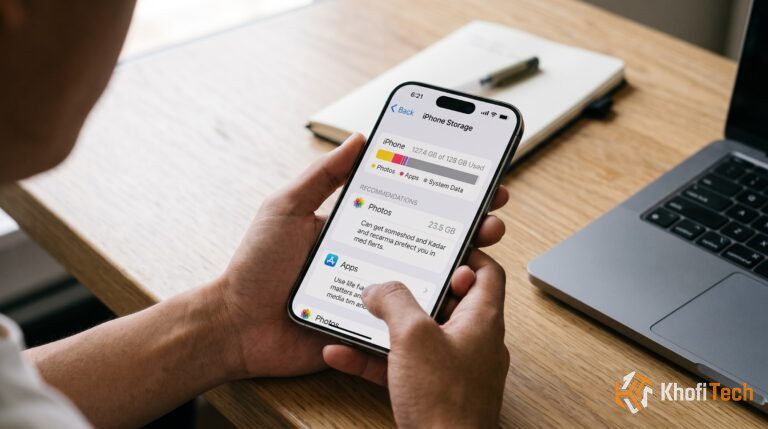
Only after confirming your backups should you remove local copies. Empty the recently deleted folder when you're certain, because that's often where the storage remains tied up.

Thread (0)