

How to Check if an iPhone is Refurbished, Replaced, or Fake (2026)
Buying a used or renewed iPhone? Learn how to decode model letters (M, F, N, P), inspect Apple’s Parts & Service History, spot counterfeit clones, and verify IMEI status

The secondary smartphone market is flooded with devices labeled “open-box,” “certified renewed,” or “factory unlocked.” However, a pristine exterior does not guarantee that the device inside matches what the seller claims. Without proper checks, you could easily pay full retail for an officially refurbished device, a warranty replacement unit, a device rebuilt with cut-rate third-party parts, or even an Android-powered clone running a cloned iOS theme.
Fortunately, Apple builds diagnostic identifiers, hardware serialization, and component tracking directly into iOS. By combining software audits with a physical hardware inspection, you can uncover the complete origin story of any iPhone in under five minutes.
Step 1: Decode the Model Number Prefix (M, F, N, or P)
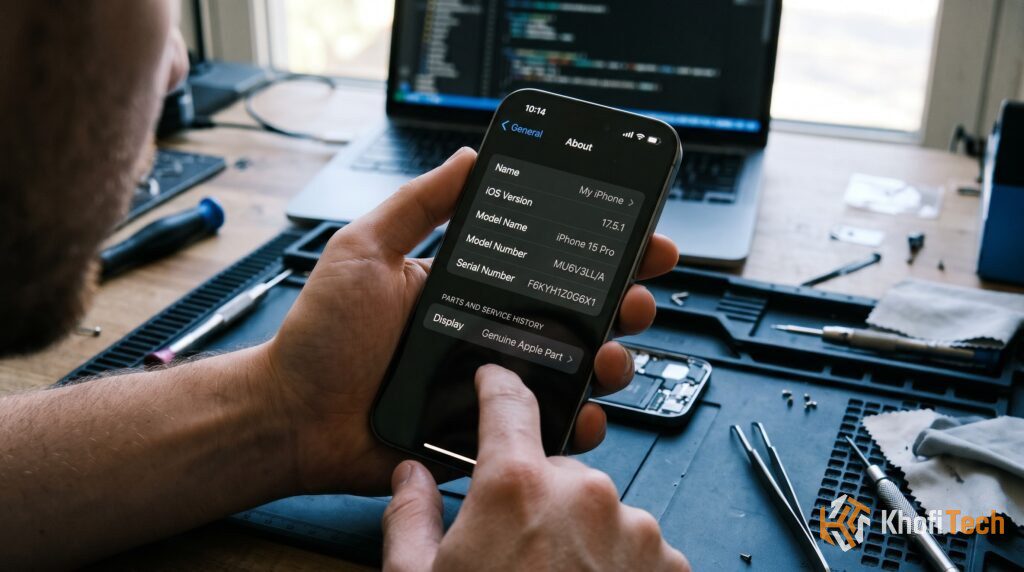
Apple encodes the manufacturing status of every device into the first letter of its internal Model Number. To check yours:
- Open Settings > General > About.
- Locate the Model Number row. (If you see a shorter number containing a slash like
A2848, tap it once to toggle the full regional model identifier, e.g.,MQ8E3LL/A). - Examine the very first letter of that string:
| Prefix | Device Origin | What It Means | Buyer Impact |
|---|---|---|---|
| M | Brand New Retail Unit | The device was originally purchased new from an Apple Store, authorized carrier, or retail store. | Standard retail status. (Does not rule out unofficial local repairs). |
| F | Apple Certified Refurbished | Restored officially by Apple or an authorized carrier with a new battery, fresh outer chassis, and original parts. | High quality, but should be priced 15%–25% lower than brand-new retail. |
| N | Apple Service Replacement | Issued by Apple at the Genius Bar or via warranty replacement to swap out a customer’s malfunctioning device. | Standard genuine hardware, but was originally provided in an unprinted service box. |
| P | Personalized / Engraved | Originally ordered online via Apple’s website with custom text or emoji laser-engraved on the rear housing. | Confirm whether the rear backplate was swapped if no physical engraving exists. |
Step 2: Inspect Apple’s “Parts and Service History”
While the Model Number shows how the device left the factory, it does not reveal what happened after it was unboxed. Third-party repair shops frequently install aftermarket screens, degraded batteries, or harvested cameras while leaving the initial model letter untouched.
On devices running modern iOS versions (iOS 15.2 and newer), Apple automatically displays hardware replacement records:
- Navigate to Settings > General > About.
- Scroll directly below the Serial Number.
- If the phone has never been opened or repaired, no “Parts and Service History” section will appear.
- If components have been serviced, the section will appear with one of three status tags:
The component was replaced using authentic Apple hardware and successfully calibrated with Apple’s diagnostic servers. Face ID, True Tone, and battery telemetry will work normally.
Under modern iOS repair calibration, genuine parts harvested from another donor iPhone display as “Used”. They are genuine OEM parts, but were not unboxed as new inventory.
The replacement part is either non-genuine (cheap aftermarket clone), was improperly installed, or was not serialized/calibrated to the motherboard. Common with cheap LCD screen swaps.
Connecting your iPhone to a computer that won’t stay connected over tethering? Check our troubleshooting walkthrough: Why Does My Phone Hotspot Keep Disconnecting on PC?.
Step 3: How to Spot a Fake or Clone iPhone (5 Dead Giveaways)
Modern counterfeit iPhones no longer look like crude toys. Clones often feature aluminum shells, accurate color finishes, and modified versions of open-source Android skinned to mirror iOS graphics, notification centers, and dynamic islands. Here is how to expose them immediately:
1. The App Store Test (The Fastest Catch)
Tap the App Store icon on the home screen. A genuine iPhone connects exclusively to Apple Services. On counterfeit devices, one of three things happens:
- The app opens the Google Play Store.
- It opens a web browser container asking you to sign in with a Gmail address.
- It opens a broken app store catalog with poor font rendering and missing Apple Arcade/Search tabs.
2. The Bottom Chin and Display Bezels
Apple uses flexible OLED panels folded under the chassis to achieve uniform, ultra-thin bezels along all four edges. Counterfeit manufacturers cannot afford this manufacturing process. Look closely at the bottom edge of the display: if the bottom “chin” bezel is visibly thicker than the top and side borders, the device is a fake.
3. Test True Tone and 120Hz ProMotion
Swipe down the Control Center and long-press the brightness slider. Check if the True Tone toggle is present and functional. Clone displays and low-tier third-party replacement screens lack ambient light sensors and ambient color-temperature calibration. Furthermore, if inspecting a Pro model (iPhone 13 Pro or newer), scroll through Settings; if the movement feels like 60Hz and stutters, the screen is an imposter.
4. Camera Shutter and Dummy Lenses
Open the default Camera app and switch between the 0.5x (Ultra Wide), 1x (Wide), and Telephoto (3x/5x) lenses. On clones, the secondary camera cutouts on the back are frequently cosmetic dummy plastic lenses. When you tap 0.5x or 3x on a fake, the phone merely applies digital zoom or software crop rather than physically switching sensor feeds.
5. Plug Into a Computer (iTunes / Finder / 3uTools)
Software skins on a fake phone can easily trick your eyes, but they cannot fool desktop operating systems. Connect the iPhone to a Windows PC or Mac using a USB-C or Lightning cable:
- On macOS, open Finder. On Windows, open Apple Devices, iTunes, or 3uTools.
- If the computer detects an Android / MediaTek device or fails to trigger the trusted iOS pairing dialogue, the phone is a counterfeit.
Step 4: Physical Hardware Checklist Before Buying
Before closing any transaction in person or finalizing an online refurbished order, run through this physical inspection checklist:
- Pentalobe Screws: Inspect the two small screws flanking the charging port at the bottom of the phone. If the screw heads are stripped, scratched, or missing, an amateur technician opened the chassis with incorrect tools.
- Liquid Contact Indicator (LCI): Pop out the physical SIM tray (on global/international models) and look inside the slot using a flashlight. If the white strip inside has turned red or pink, the phone has suffered internal liquid intrusion.
- Water Resistance Gaskets: Gently press the screen corners. If the display flexes, lifts, or lets light bleed from the edges, the waterproof seal has been broken during an aftermarket screen replacement.
- Face ID Functionality: Open Settings > Face ID & Passcode and set up Face ID. If the front TrueDepth camera or dot projector was damaged during an unauthorized screen replacement, iOS will display an error: “A problem was detected with the TrueDepth camera.”
Step 5: Verify Apple Warranty and Carrier Lock Status
Never rely solely on what the seller tells you regarding network compatibility or remaining warranty coverage.
Check Activation & Coverage on Apple’s Official Site
- Go to Settings > General > About and copy the Serial Number.
- Visit Apple’s official coverage portal at checkcoverage.apple.com.
- Enter the serial number and captcha code.
- Confirm that the displayed product matches the exact model and color of the device in your hand. If Apple’s database says “We’re sorry, but this is a serial number for a product that has been replaced,” the phone was written off by Apple and should not be in circulation.
Check Carrier Lock Status
To avoid buying a device tied to a foreign network contract that will not register your local cellular network:
- In Settings > General > About, scroll down to Carrier Lock.
- Confirm that it explicitly states “No SIM restrictions”.
- If it lists a specific carrier (e.g., T-Mobile, AT&T, Vodafone), the phone cannot be used on other carriers without an official network unlock.
Frequently Asked Questions
Quick answers to common questions
No. An "N" model indicates an official Apple service replacement unit. These devices are manufactured by Apple using identical quality standards and genuine components to replace malfunctioning customer phones under warranty. In many cases, an "N" replacement device was unboxed directly into service without previous wear.
No. The model identifier and serial numbers are hardcoded into the device’s read-only memory and NAND flash. Unauthorized repair shops cannot modify an "F" or "N" into an "M". However, they can replace parts inside an "M" device without the letter changing, which is why checking the Parts and Service History is essential.
An "Unknown Part" message indicates that a component (such as the screen, battery, or camera module) was replaced with an unverified third-party part, was not calibrated to the motherboard, or was salvaged improperly without Apple serialization tools. The phone may still function, but features like battery health monitoring or True Tone might be disabled.
No. Counterfeit iPhones running Android skins cannot communicate with Apple’s device drivers or cryptographic pairing certificates. When connected to iTunes, Finder, or 3uTools, the desktop software will either fail to detect any Apple device or flag the hardware parameters immediately.

Thread (0)