

How to check whether your GPU is actually the bottleneck
Before you spend on an upgrade, spend ten minutes reading the numbers your PC already reports.

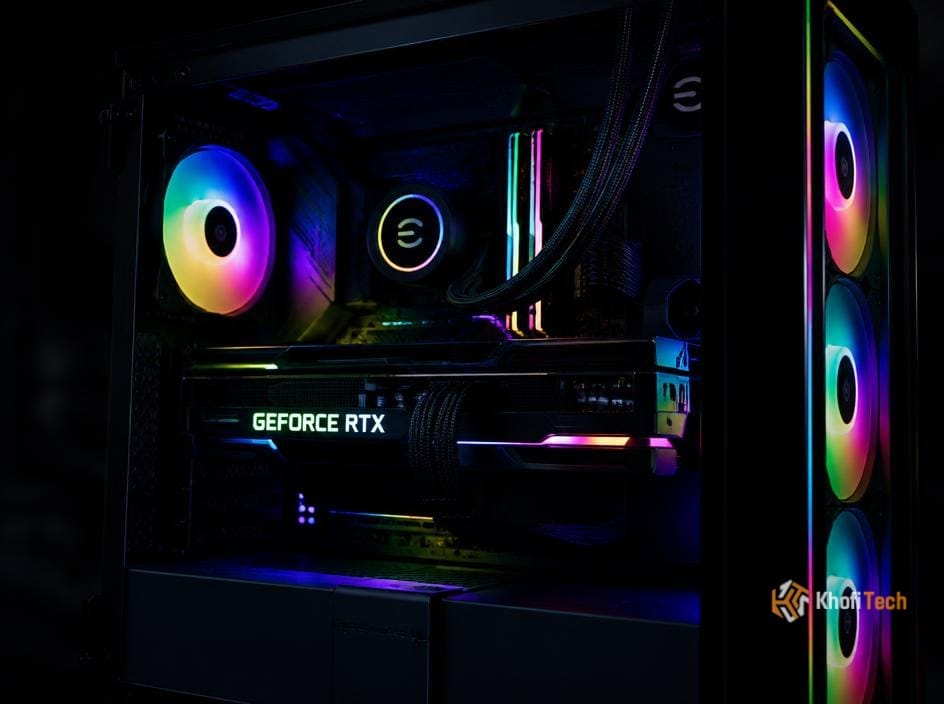
Measure the problem before buying
A graphics card upgrade only helps if the GPU is what limits your game. Open your system's performance monitor or a trusted in-game overlay and watch GPU utilization, CPU utilization, frame rate, and temperatures while playing the game you actually care about.
Test a repeatable scene. Menus and loading screens tell you very little about real gameplay.
Read the pattern, not one number
A GPU sitting near full utilization while frame rates dip is a sign the graphics workload is the limit. If GPU use is low while one CPU core is busy, a faster graphics card may do surprisingly little.
Also check for thermal throttling, low memory, background tasks, and frame-rate caps. Any of those can imitate a hardware bottleneck. Compare results at more than one graphics preset to see how the load shifts.
Choose the right next step
If lowering resolution or visual settings raises frame rate considerably, the GPU is doing the limiting. If frame rate barely changes, investigate the CPU, memory, or game engine instead.
Update drivers, clear dust from the cooling system, and check temperatures before spending money. A clean diagnosis is worth more than a speculative upgrade.

Thread (0)