

How to Activate eSIM on iPhone: QR Code, Transfer & Manual Setup (2026)
Learn how to activate eSIM on iPhone with this quick guide. Easy steps to get your QR code online via myMTN or Telecel Play without visiting a shop.

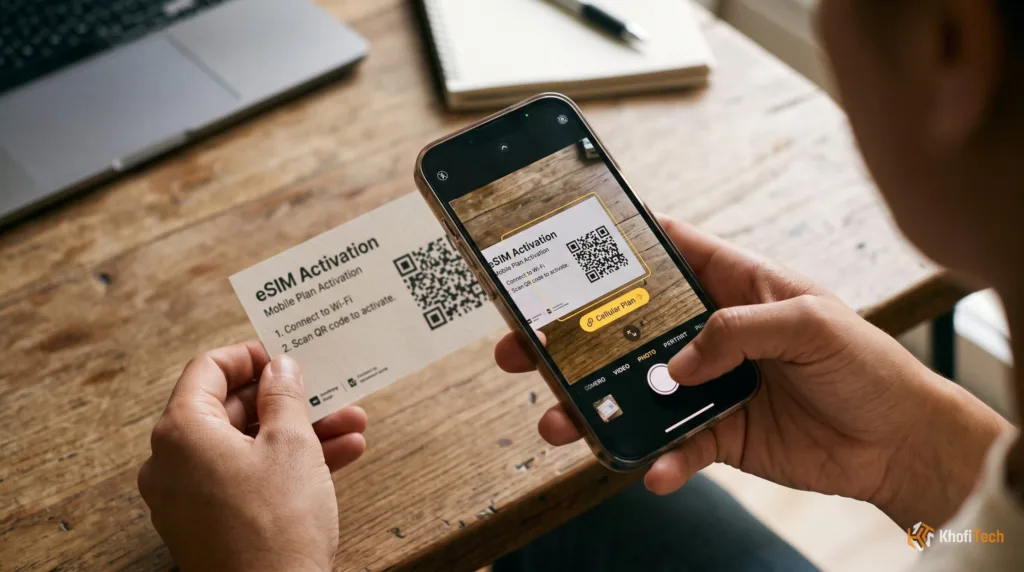
Learning how to activate eSIM on iPhone has become essential for anyone upgrading their smartphone. With many popular “US-spec” iPhone models (iPhone 14, 15, and 16) arriving without a physical SIM tray, an electronic SIM is the only way to get your line connected.
Even if your phone has a physical slot, switching to an eSIM lets you run two active numbers on a single device—such as pairing an MTN internet bundle with a Telecel voice line—while protecting your number from physical SIM swaps if your device is misplaced.
Best of all, you no longer need to join long queues at customer service centers. Here is the step-by-step guide to doing it completely online.
1. Check Your iPhone Compatibility First
Before requesting an activation profile, confirm two settings:
1. Model Support: Ensure you are using an iPhone XS, XR, SE (2nd/3rd gen), or any model in the iPhone 11 through 16 series.
2. Carrier Status: Open Settings > General > About and scroll down to Carrier Lock. It must state “No SIM restrictions”. If it lists a foreign carrier, local profiles will not install until the phone is factory unlocked.
2. How to Get Your eSIM Profile Online
For MTN (Via myMTN App or Web)
1. Open the myMTN App or visit https://esimrequest.mtn.com.gh/.
2. Navigate to the eSIM section.
3. Enter your phone number and verify your session with the one-time PIN (OTP).
4. Follow the on-screen steps to confirm your Ghana Card details.
5. Your unique eSIM QR activation code will be displayed on the screen and sent directly to your registered email address.
For Telecel (Via Telecel Play App)
1. Open the Telecel Play App on your device.
2. Tap the eSIM banner or look under account services.
3. Select whether you want to swap your existing plastic SIM to an eSIM or register a new line.
4. Complete your identity verification using your Ghana Card directly within the app.
5. Telecel will generate your digital activation QR code on-screen and email you a backup copy.
Carrier Note (MTN, Telecel, Airtel, etc.)
Unlike US carriers that support automatic digital transfers, regional telcos (such as MTN) usually require an initial physical identity verification (KYC) or SMS validation. For example, MTN users typically need to visit an official service center or their official eSIM portal to generate a linked QR voucher before scanning it on iOS.
3. Install the eSIM on Your iPhone
Make sure your iPhone is connected to Wi-Fi or a secondary hotspot, then follow these steps:
1. Open Settings on your iPhone.
2. Tap Cellular (or Mobile Data).
3. Tap Add eSIM (or Set Up Cellular).
4. Select Use QR Code.
5. Frame the QR code (displayed on your laptop screen, tablet, or another phone) with your iPhone camera.
6. Tap Continue when the carrier notification appears.
7. Allow 30 to 60 seconds for your iPhone to connect to the network server and download your profile.
8. Tap Done.
4. Configure Your Dual SIM Settings
If you are running two lines on one iPhone:
Label Your Lines: Label one line as “Primary” and the other as “Secondary” (or “Work”).
Set Default Voice Line: Choose which number makes outgoing calls and sends SMS by default.
Select Data Route: Pick your preferred provider for internet traffic. Toggle OFF “Allow Mobile Data Switching” to avoid accidental credit deductions on your secondary line.
Data Strategy Tip: If you are running a secondary eSIM purely for cheaper mobile data, compare whether dedicated portable hardware is more cost-effective in our guide on MiFi vs Mobile Data (2026): Which Saves More Money and Runs Faster?
2 Essential Security Precautions
Back Up Your QR Code: Take a screenshot of the QR code or save the PDF from your email into Google Drive or iCloud. If you ever wipe or upgrade your iPhone, you will need that same QR voucher to reinstall your line.
Enable SIM PIN: Go to Settings > Cellular > SIM PIN and turn on a 4-digit security PIN. This stops unauthorized access to your Mobile Money and banking OTPs if your phone is ever stolen.
Battery Longevity Tip: Running an active Dual SIM setup increases cellular radio polling and battery drain. Keep track of how daily discharge cycles impact your device longevity using our guide to check your iPhone battery cycle count.
Activate Using a Carrier QR Code (Most Common)
When purchasing an eSIM from global carriers (AT&T, Verizon, T-Mobile, Vodafone, EE) or regional providers (like MTN, Telecel, Airtel, or Jio), they will provide an activation voucher containing a QR code via email or their mobile app.
Quick Steps: QR Code Scan
- Open Settings > Cellular (or Mobile Service in some regions).
- Tap Add eSIM (or Set Up Cellular).
- Select Use QR Code.
- Point your iPhone camera at the QR code displayed on your computer screen or printed voucher.
- Tap Continue when the “An eSIM from [Carrier] is ready to be added” banner appears.
- Wait 60 to 90 seconds while the phone contacts the provisioning server, then tap Done.
How to Manually Activate an eSIM on iPhone (Without Scanning a QR Code)
If your camera cannot scan the QR voucher, or if the QR code image is saved on the very iPhone you are trying to activate, you can configure the profile manually using the carrier’s provisioning parameters.
Manual Activation Step-by-Step
- Go to Settings > Cellular (or Mobile Service) > Add eSIM.
- Tap Use QR Code.
- At the bottom of the camera scanner screen, tap Enter Details Manually.
- Enter the SM-DP+ Address provided by your carrier (e.g.,
cust-subscriber.prod.ondemandconnectivity.com). - Enter the unique alphanumeric Activation Code.
- If provided, enter the Confirmation Code (leave blank if your carrier didn’t issue one).
- Tap Next in the upper-right corner and allow 60 seconds for the profile to download.
Fixing Common iPhone eSIM Errors
1. “Unable to Complete Cellular Plan Change”
This happens when the carrier’s token has already expired or been scanned once. eSIM QR codes are strictly single-use. If the process was interrupted, contact your carrier’s support team to reset or reissue the QR code.
2. Stuck on “Activating…” or “No Service”
Make sure you are connected to a strong Wi-Fi network. Toggle Airplane Mode ON for 15 seconds, then OFF. If it still won’t connect, go to Settings > Cellular > Network Selection and toggle off Automatic to manually choose your network.
Ask Khofi Tech
Related stories
Is Outlook Down? Live Status Check, Fixes & November 2026 Outage Explained
Can't load or send emails in Outlook? Check live Microsoft 365 status, read what caused the massive November 2026 global outage, and try 5 quick fixes.
SuperVOOC vs. USB-PD: Why Your Fast Charger Charges Other Phones Slowly
Ever wondered why your 80W or 100W SuperVOOC charger charges iPhones and Samsung Galaxy phones at just 10W? Here is the voltage, PPS, and handshake science explained.
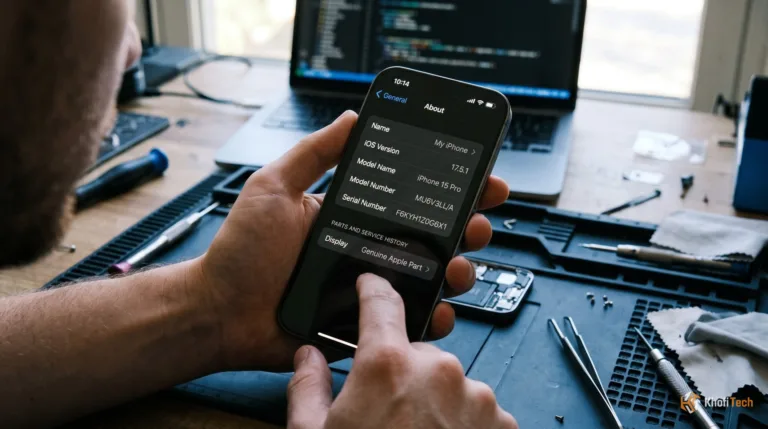
How to Check if an iPhone is Refurbished, Replaced, or Fake (2026)
Buying a used or renewed iPhone? Learn how to decode model letters (M, F, N, P), inspect Apple’s Parts & Service History, spot counterfeit clones, and verify IMEI status
Thread (0)