

How to Check iPhone Cycle Count: 3 Simple Methods
Learn how to check iPhone cycle count in minutes. Discover 3 easy methods using native iOS settings, diagnostic shortcuts, and PC tools.

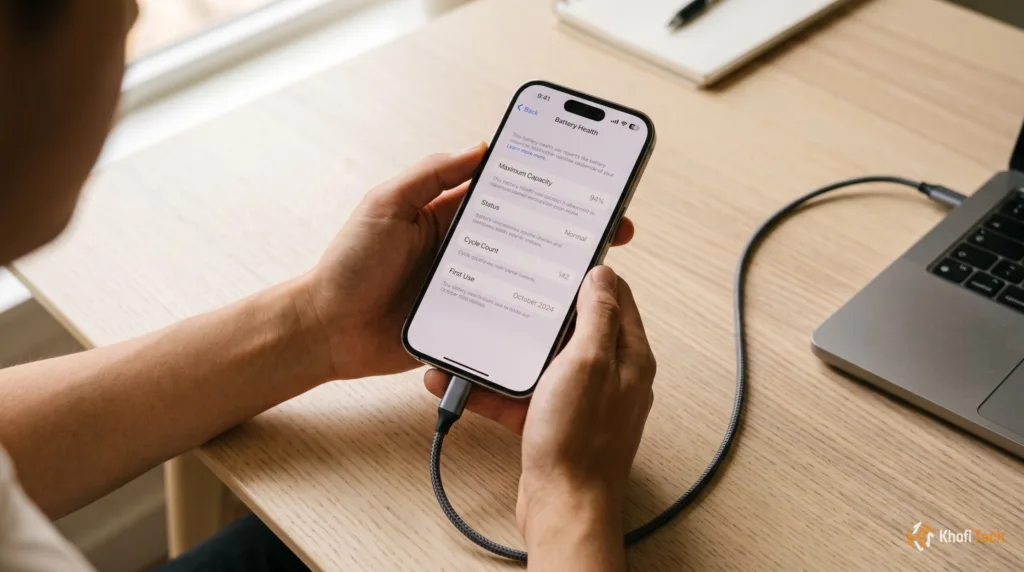
Knowing how to check iPhone cycle count is the single best way to determine the true condition of your battery. While the “Maximum Capacity” percentage in iOS settings gives a general estimate, it can lag behind real-world wear or even be artificially inflated with hardware programmer tools by second-hand phone sellers at markets like Kwame Nkrumah Circle.
A charge cycle represents one full discharge of 100% battery capacity (whether drained all at once or across several days). The higher the cycle count, the older the battery cells.
Here are the three easiest ways to verify your battery cycles accurately.
Switching platforms or inspecting an Android device? Read our companion guide on How to Check Battery Health and Cycle Count on Android (Samsung, Pixel, Xiaomi).
1. Native Settings (iPhone 15 & iPhone 16 Series)
If you use any iPhone 15 or iPhone 16 model running iOS 17.4 or later, Apple displays the cycle count directly inside the operating system.
How to check:
1. Open Settings on your iPhone.
2. Tap Battery, then select Battery Health.
(On earlier iOS 17 versions, go to Settings > General > About and scroll to the bottom).
3. Under the Cycle Count section, you will see the exact number of complete charge cycles your phone has logged since its manufacture date.
How to Check Battery Cycles on iPhone 13, 14, and Newer Models
The exact method to check your charge cycle count varies depending on which generation of iPhone you use:
- iPhone 15, 16, and Newer: Apple displays cycle count natively. Go to Settings > Battery > Battery Health and view the exact count listed under the Cycle Count field.
- iPhone 14, iPhone 13, and Older: Apple hides the raw count from the standard Battery menu. You must either inspect your device log files under Settings > Privacy & Security > Analytics & Improvements > Analytics Data (searching for
last_value_CycleCountin theAnalytics-Year-Month-Daylog) or run a dedicated Apple Shortcuts workflow to parse the data automatically.
Charging Tip: If your cycle count is climbing rapidly because your phone spends excessive hours connected to the charger topping off, read our guide to troubleshoot hardware and cable charging bottlenecks and eliminate wattage loss.
2. The iOS Shortcut Method (iPhone 14 & Older Without a PC)
Older models (iPhone 14, 13, 12, 11, and SE) do not display the cycle count directly on the Battery page, but iOS records this data inside daily diagnostic logs. You can extract it using a free Siri Shortcut such as Battery Stats or PowerControl.
How to check:
1. Download a trusted battery diagnostic shortcut (e.g., search for the Battery Stats shortcut in Safari and add it to your Shortcuts app).
2. Open Settings > Privacy & Security.
3. Scroll down and tap Analytics & Improvements.
4. Make sure Share iPhone Analytics is turned ON. (Note: If this was previously turned off, you must turn it on and wait 24 hours for iOS to generate its first log).
5. Tap Analytics Data.
6. Find the most recent file starting with Analytics- (e.g., Analytics-2026-10-20-xxxx.ips.ca.synced).
7. Tap the file, tap the Share button in the top right corner, and select Battery Stats from your share sheet.
8. The shortcut will instantly parse the log and display your exact cycle count and remaining milliamp-hour (mAh) capacity.
3. The Diagnostic PC Tool (Fastest for Second-Hand Inspections)
If you are inspecting a phone at a shop counter or buying from a vendor, reading analytics files takes too long. Plugging the device into a laptop gives an instant, tamper-proof hardware readout.
How to check:
1. Download and install 3uTools (Windows) or CoconutBattery (macOS).
2. Connect the iPhone to the computer using a lightning or USB-C cable.
3. Unlock the iPhone screen and tap Trust This Computer.
4. Open the tool on your computer.
5. On the main device summary screen, look at Charge Times / Battery Cycles.
What the Numbers Mean:
| Cycle Count | Battery Health Status | Recommended Action |
|---|---|---|
| 0 – 250 | Excellent / Like New | Optimal performance; no action needed. |
| 250 – 500 | Good / Moderate Use | Normal wear; should comfortably last a full day. |
| 500 – 800 | Degraded | Capacity approaching 80%; prepare for faster battery drain. |
| 800+ | Heavily Worn | Expect sudden shutdowns; consider replacing the battery. |
The Red Flag to Watch Out For
If an older model like an iPhone 11 or 12 shows 100% Maximum Capacity in iOS Settings, but a PC diagnostic reads 500+ cycles, the battery health percentage has been boosted using an external programmer tag.
In this scenario, the battery cells are chemically worn down, and the device will begin shutting down unexpectedly despite the 100% rating. Always rely on the cycle count before making your final decision.
What Does Battery Cycle Count Actually Mean?
A charge cycle does not mean every time you plug your phone into a wall charger. Instead, one full cycle is completed only when you have discharged 100% of your battery’s total rated capacity, regardless of how many partial charging sessions it takes.
For example:
- If you use 70% of your battery during the day and recharge it to 100% overnight, then use 30% the following day, that combined 100% discharge counts as exactly one charge cycle across two days.
- If you top up from 80% to 100% five times (20% each time), those five sessions equal one complete cycle.
How Many Cycles Before Battery Health Drops to 80%?
Lithium-ion batteries are consumable hardware with finite chemical lifespans. As cycles accumulate, the internal electrolyte breaks down and usable capacity gradually decreases:
- iPhone 14 and Older Models: Apple designs these batteries to retain up to 80% of original capacity at 500 complete charge cycles under normal operating conditions.
- iPhone 15, 16, and Newer Models: Upgraded power management chips and modified cell chemistry allow these batteries to retain up to 80% of original capacity at 1,000 complete charge cycles.
Longevity Note: Physical charge cycles are only half of the degradation equation. To keep your battery health percentage from dropping prematurely, read our breakdown on how overnight high-voltage stress impacts cycle degradation and why resting at 100% accelerates wear.
Ask Khofi Tech
Related stories

Best Web Hosting Companies in Ghana (2026) – Top 5 Ranked
Compare the best web hosting companies in Ghana in 2026, including StormerHost, HostAfrica, and UltraHost. Check GHS pricing, MoMo support, and uptime

Why Phones and Laptops Cost More in 2027
Rising RAM and SSD costs from AI data centers are pushing up 2027 phone and laptop prices. See how the memory crunch affects specs and how to buy smart

Is Outlook Down? Live Status Check, Fixes & November 2026 Outage Explained
Can't load or send emails in Outlook? Check live Microsoft 365 status, read what caused the massive November 2026 global outage, and try 5 quick fixes.
Thread (0)