

How to Disable Startup Programs in Windows 11 & 10
Learn how to disable startup programs in Windows 11 and Windows 10 to speed up your PC boot time. Step-by-step guide using Task Manager and Settings.

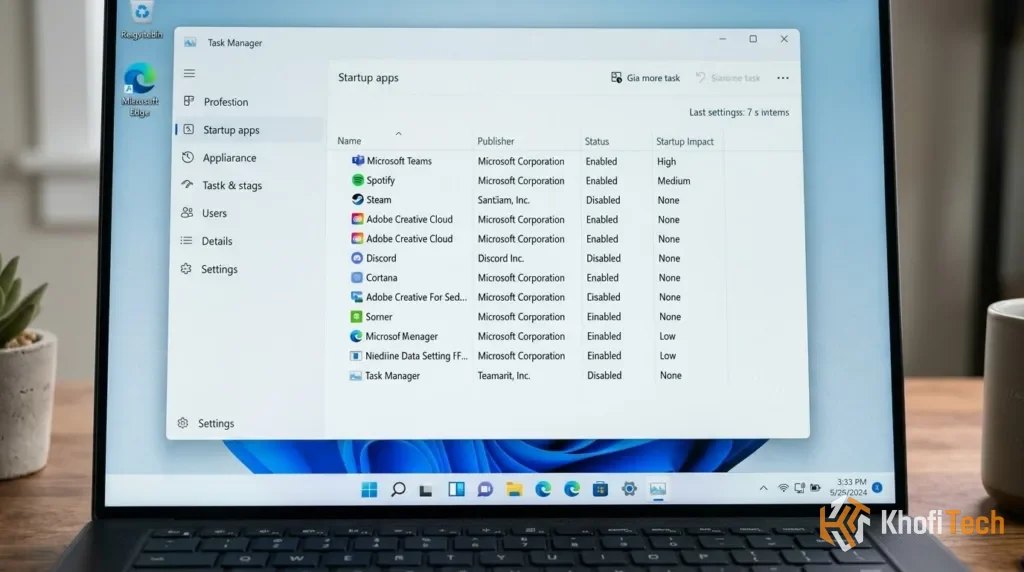
Does your computer take forever to boot up, or does it freeze and lag the moment you reach the desktop? If you notice your PC fans spinning loudly right after turning it on, chances are dozens of background apps are launching simultaneously.
Apps like Spotify, Discord, Torrent clients, and cloud updaters love to embed themselves into your startup sequence. Stopping these unnecessary background processes is one of the fastest ways to breathe new life into an aging laptop or desktop.
This step-by-step guide shows you how to safely disable startup programs in Windows 11 and Windows 10.
Method 1: Using Task Manager (Fastest & Easiest)
The Task Manager is the quickest tool to view and control everything launching when your computer boots up.
- Open Task Manager: Press
Ctrl+Shift+Escon your keyboard simultaneously. Alternatively, right-click your Windows taskbar and select Task Manager. - Navigate to Startup Apps:
- In Windows 11: Click on the Startup apps icon (it looks like a gauge or speedometer) on the left-hand navigation menu.
- In Windows 10: Click on the Startup tab located across the top menu bar.
- Review the Impact List: You will see a list of applications along with their Startup impact rating (High, Medium, Low, or Not measured).
- Disable Unwanted Programs: Right-click any app you don’t need running immediately upon boot (such as Steam, Epic Games, Cortana, or Microsoft Teams) and click Disable.
Method 2: Using the Windows Settings App (Windows 11)
If you prefer using the modern Windows settings menu rather than the Task Manager:
- Open the Start Menu and click on Settings (or press
Windows Key+I). - Navigate to Apps on the left menu, then click on Startup on the right.
- You will see a list of installed apps with toggle switches next to them.
- Toggle the switch to Off for any application you want to prevent from starting automatically.
What Should You Disable vs. Keep Enabled?
Knowing what to turn off prevents you from accidentally disabling critical system functions:
- Safe to Disable (Third-Party Apps): Chat apps (Discord, WhatsApp, Telegram), game launchers (Steam, Epic, Riot), media players (Spotify, iTunes), cloud sync tools you don’t use constantly (OneDrive, Dropbox), and printer updaters.
- KEEP ENABLED (Essential System Services): Windows Security / Defender notifications, official touchpad or audio drivers (like Realtek, Intel, or NVIDIA control panels), and genuine antivirus software. If you aren’t sure what an app does, leave it enabled or do a quick web search before turning it off.
Why Clearing Startup Apps Speeds Up Your PC
When dozens of apps launch on startup, they immediately consume CPU cycles, RAM, and disk bandwidth in the background. By trimming your startup list down to essential services only:
- Your desktop loads to a usable state in seconds instead of minutes.
- Your laptop battery drains slower during initial boot phases.
- More RAM and system resources remain free for demanding workflows like video editing, coding, or gaming.
Frequently Asked Questions
Quick answers to common questions
No. Disabling a startup program only prevents it from launching automatically when Windows starts. You can still open and use the application manually
Press Ctrl + Shift + Esc to open Task Manager. Select Startup apps from the left sidebar, right-click an unnecessary program, and click Disable
Most third-party apps, such as Spotify, Discord, Steam, OneDrive, and download managers, are generally safe to disable. Avoid disabling essential system drivers, Windows security software, or hardware control utilities
Press Ctrl + Shift + Esc to open Task Manager. Click the Startup tab, right-click the program you want to stop, and select Disable
Ask Khofi Tech
Related stories

Why Phones and Laptops Cost More in 2027
Rising RAM and SSD costs from AI data centers are pushing up 2027 phone and laptop prices. See how the memory crunch affects specs and how to buy smart
Is Outlook Down? Live Status Check, Fixes & November 2026 Outage Explained
Can't load or send emails in Outlook? Check live Microsoft 365 status, read what caused the massive November 2026 global outage, and try 5 quick fixes.
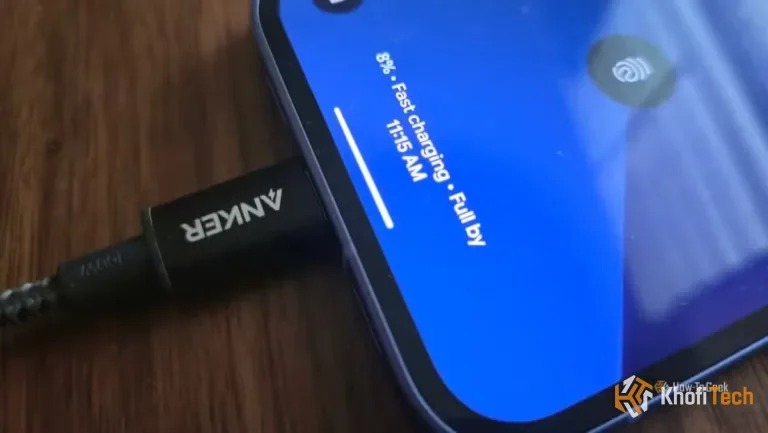
SuperVOOC vs. USB-PD: Why Your Fast Charger Charges Other Phones Slowly
Ever wondered why your 80W or 100W SuperVOOC charger charges iPhones and Samsung Galaxy phones at just 10W? Here is the voltage, PPS, and handshake science explained.
Thread (0)